AI Scarecrow Video Generator: Fabric and Straw From One Photo
Upload one clear portrait or upper-body photo. The preset asks for burlap textures, straw accents at the collar and cuffs, and button-like eyes in a scarecrow transformation.
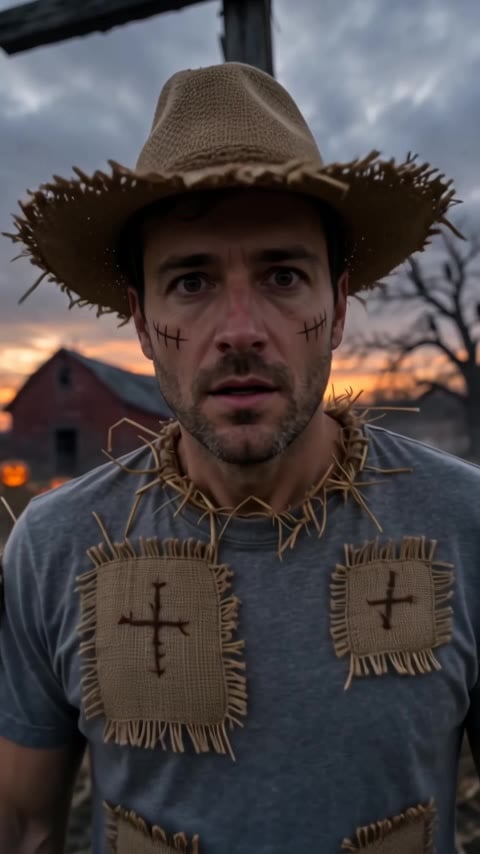
A clear face with visible shoulders and even light gives the fabric and straw room to read.
284 credits per 5-second video
External visual reference, not a FYP FX-generated result. Review the preset description for the requested look and motion.
Check the face, shoulders and light
- Include a sharp face and visible upper body.
- Prefer even light and space around the shoulders.
- Avoid group photos and heavy face filters.
Sign in and check your credit balance. View credit plans.
Watch the face through the fabric shift
- Button-like eyes and fabric textures may change facial resemblance.
- Straw, sleeve edges and hands may shift or overlap as the look forms.
- The output is silent and keeps the source aspect ratio.
For a scarecrow reveal, trim as the look settles and add a short wind whoosh.
Preset details reviewed by FYP FX ·
See the scarecrow framing
Keep the face, collar and upper body sharp for the fabric-and-straw reveal.
Crafted scarecrow scene
A fabric-and-straw costume reference. The preset also requests stylized button eyes, so eye details are intended to change from the original face.
GoEnhance ↗External visual reference, not a FYP FX-generated result. Review the preset description for the requested look and motion.
Prepare a clear scarecrow take
Start with a clear portrait, then check the face through the transform.
Upload a clear portrait
Use one photo of one person with a sharp face and visible upper body.
Generate the scarecrow transform
Confirm the 284-credit cost, then select Generate once. Fabric and straw details are preset.
Review the face and texture
Check that the face stays readable and details look cinematic, then download and add audio.
Making a clear Scarecrow clip
Both. The preset asks for fabric-like texture across the person, straw at the collar and cuffs, and button-like eyes. It is more than adding a hat or an outfit.
The preset requests a stylized button-like treatment over the eyes. Shape and placement vary, and the face may become less recognizable.
Yes. Keep the face large enough to recognize. Showing sleeves and cuffs gives the straw accents more space than a tight portrait.
A silent 5-second, 720p generation costs 284 credits. Check the displayed cost and your balance before generating.
The output is silent. Add a wind or seasonal track in your editor after downloading.
Compare the face before and after the button-eye change. Check straw placement, sleeve edges and visible hands, especially while textures form.
Check generation history and balance before submitting again, and contact support if the status stays unclear.
Plan your scarecrow edits
View credit plans before creating your scarecrow clips.
What is the AI Scarecrow effect?
The AI Scarecrow effect changes one person into a crafted, human-shaped scarecrow look: patchwork clothes, a burlap surface over the face, straw at the collar and visible cuffs, and toy-like sewn button eyes. A small head tilt ends the transformation. The eyes intentionally change; the preset uses the remaining face shape and hairstyle to suggest the same person, without replacing the whole head with a sack.
Give fabric and straw room around the upper body
Show the face and upper torso so the model has space for burlap texture and straw around the collar. Visible sleeves and cuffs help if you want those straw details to appear too.
- Use one person with a clear face, visible hairstyle and upper body in even light.
- Leave the collar and shoulders visible for straw and fabric details; avoid a tight crop that removes these cues.
Fabric texture, straw accents and button-like eyes
- The eyes intentionally become button shapes, so the result does not preserve normal eye detail and can be less recognizable.
- Burlap, straw and facial proportions can drift. The intended result has a covered human-shaped body, without injury or melting flesh.
The scarecrow transform happens in three beats
The preset requests a seasonal transformation of both face and clothing. Button-like eyes and fabric textures can change identity cues, so compare the finished face with the source.
01The human photo opens the clip
Viewers recognize you before the transform begins.
02Fabric and straw begin to form
Burlap texture and straw accents spread across clothing and collar.
03Button-like eyes settle for the finale
Toy-like button eyes complete the face treatment, followed by a small head tilt and hold. The eyes intentionally change, and facial resemblance may weaken.
Finish and share your clip
After downloading, add wind or a short rustling sound during the fabric change. For a longer before view, prepend a still of the source photo in your editor.
What makes this an AI Scarecrow effect?
Can I keep natural eyes instead of buttons?
There is no eye-style control. The fixed preset requests button-like eyes along with burlap and straw details.
Will I become unrecognizable?
Facial resemblance can change substantially when the eyes and skin become stylized. A sharp source helps the starting reference, but does not guarantee identity will hold.
Why show the shoulders?
Straw at the collar needs space; tight face crops can clip the costume details.