Show the face and collar for the fabric change
The AI Scarecrow tool turns one person photo into a fabric-and-straw character: patched clothing, burlap-like facial texture, straw at the collar and cuffs, and toy-like button eyes. The eyes intentionally change, so this is a stronger facial transformation than simply adding a costume. The effect introduction explains the intended look.
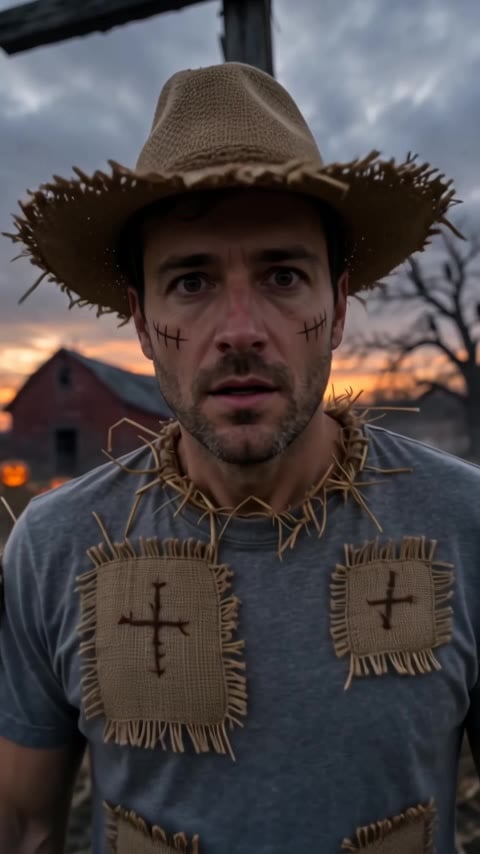
The preset creates a silent, 5-second, 720p video for 284 credits. The aspect ratio follows your source photo. Check the quote before generating.
Step 1: Choose a clear upper-body photo
Use one JPG or PNG, up to 20 MB, with one sharp face and visible shoulders. Use an image you have permission to use.
Include the collar and upper torso for fabric and straw. If you want straw at the cuffs to be visible too, include the sleeves and hands rather than cropping at the shoulders. A full-body photo is possible, provided the face is large enough to read.
Avoid a mask, hair covering the eyes, heavy face filters or another person overlapping the subject. These details make it harder to judge what changed during the transformation.
Step 2: Upload and run the preset
Open AI Scarecrow, sign in and upload the image. After the upload finishes, check the face, collar and any visible cuffs in the preview. Confirm your balance covers 284 credits, then select Generate once.
There is no eye-style, straw-density or costume selector. Processing can take several minutes. If progress stops updating, check My videos and your balance before starting another attempt.
Step 3: Review the transformation, including the altered eyes
The preset begins from the photo, asks for clothing and face textures to become fabric-like, adds collar and cuff straw and button-like eyes, then ends with a small head tilt and hold. The original eye appearance is not expected to remain. Facial structure and hairstyle guide resemblance, but AI may still change them.
| Check | What to look for |
|---|---|
| Fabric texture | Burlap and patches follow the face and clothing without melting body parts together. |
| Straw placement | Accents emerge at the collar or visible cuffs rather than covering the entire face. |
| Button-eye treatment | The stylized eyes sit coherently on the face, without extra eyes or unrelated features. |
| Head tilt and ending | The neck and shoulders remain natural, and the result is a look you want to keep. |
A wider upper-body source can help if the collar is cropped. A sharper face supplies a clearer reference, but does not guarantee resemblance through a button-eye transformation. Each new generation uses credits.
Step 4: Download and add a rustling sound
Use Download video in the studio, or open the finished result in My videos. Add wind or a short fabric-rustle sound in your editor during the change. The output is silent.
You can prepend a still of the original photo for a longer before view. Keep captions off the face and collar, and identify the clip as AI-generated if sharing.
FAQ
Can I keep natural eyes?
There is no eye-style control. This preset asks for toy-like button eyes.
Will I remain exactly recognizable?
No guarantee. Changing the eyes and skin texture can significantly change facial resemblance.
Why are the cuffs not visible?
A shoulder-only source does not show them. Use a wider source if cuff details matter to your edit.
Choose a clear upper-body photo and create an AI Scarecrow video. For a look focused on clothing and accessories, see AI Halloween Costume Transformation.