AI Zombie Couple Generator: Two Photos, One Reunion
Build a human-and-zombie reunion from two separate portraits. The upload order sets the intended roles; the embrace and moonlit setting are generated.
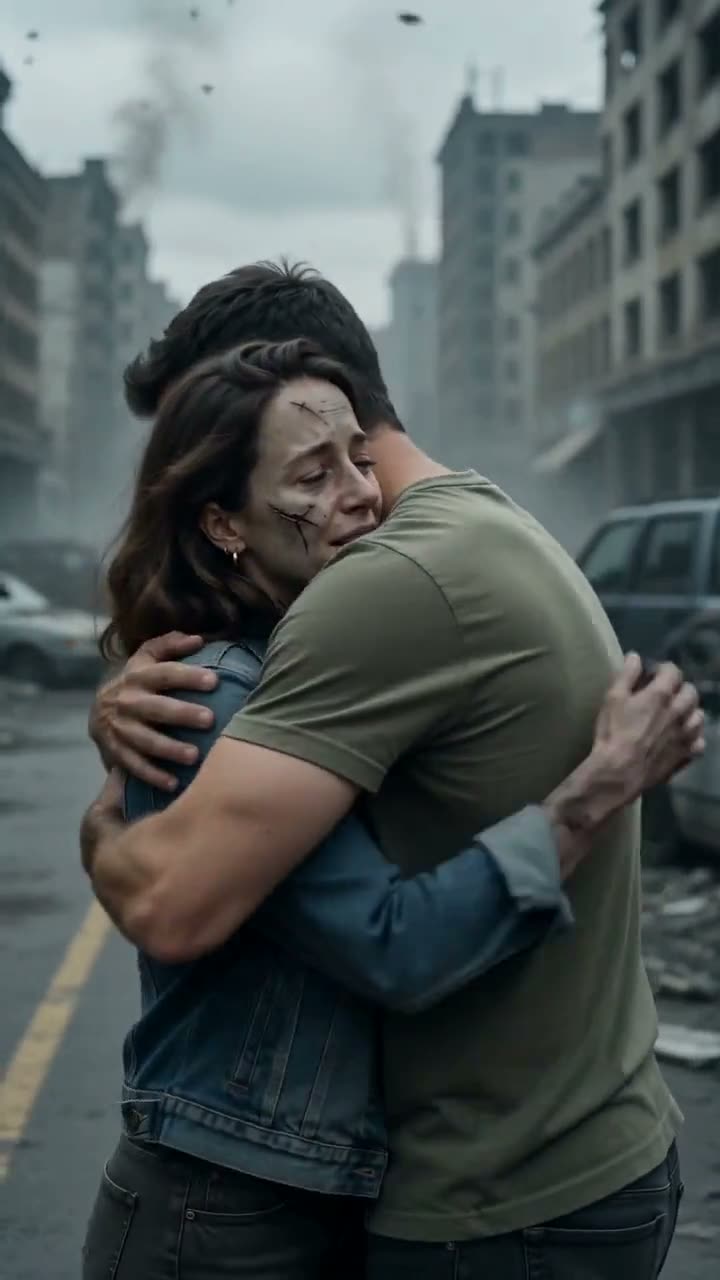
Use the slots as character references, not before-and-after frames. Check both identities and their overlapping arms when the embrace completes; the background and pose are generated.
568 credits per 5-second video
External scene references, not FYP FX-generated results. Your 5-second clip may differ.
Check the human and zombie slots
- Photo 1 should show only the person who will remain human, with a clear face and visible shoulders.
- Photo 2 should show only the zombie partner. Normal skin and everyday clothes are fine; makeup is added by the preset.
- Use comparable face sizes and uncluttered portraits so the two references are easier to tell apart.
Sign in and check your credit balance. View credit plans.
Review both identities through the hug
- Role assignment can drift: confirm that only the intended partner receives zombie styling.
- The portraits guide identity in a new scene; their backgrounds, poses and fine facial details may change.
- Arms overlap during the embrace, so check for merged hands or bodies before keeping a take.
The output is already vertical 9:16. When preparing a TikTok zombie couple edit, leave the faces and point of contact clear of captions.
Preset details reviewed by FYP FX ·
Compare the reunion and embrace framing
These external stills show two distinct faces and overlapping arms during a human-and-zombie reunion. Use them to consider the composition; the live preset requests gentler, non-graphic styling.
Reunion reference
The scene centers on recognition between a human and a gentle zombie character.
zombie-couple.com ↗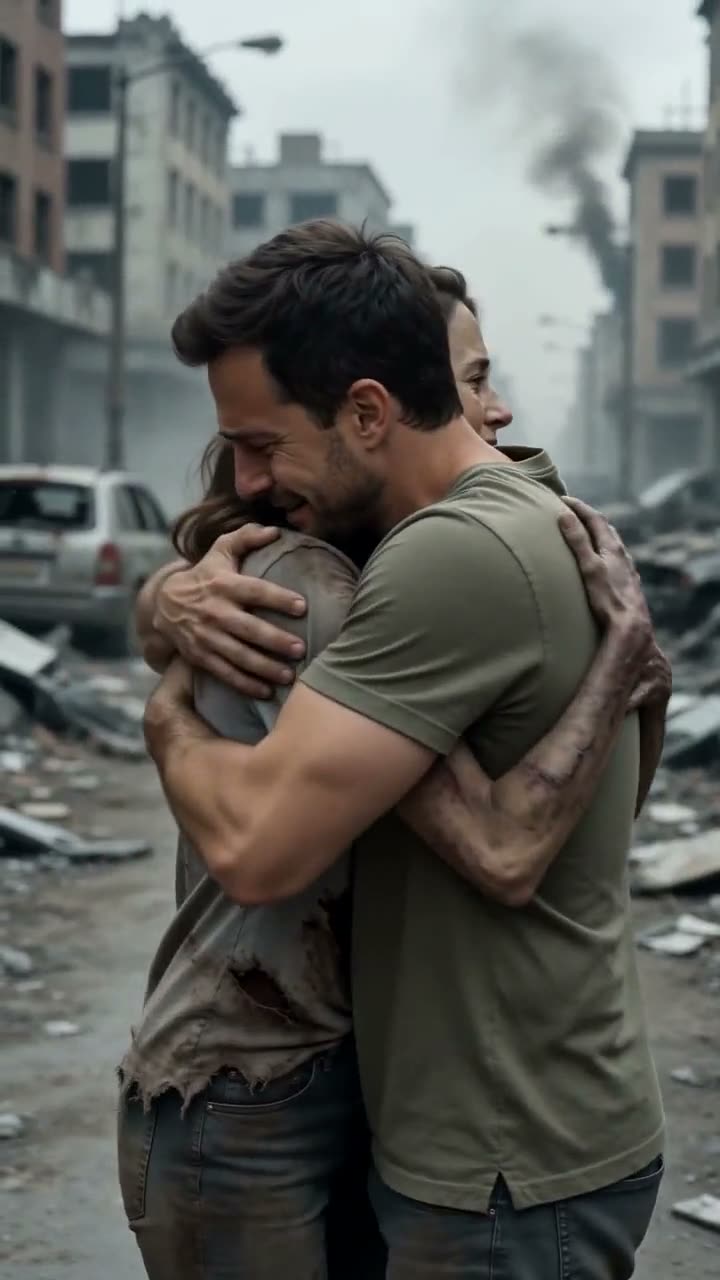
Embrace reference
A gentle embrace gives the five-second scene its emotional focus.
zombie-couple.com ↗External scene references, not FYP FX-generated results. Your 5-second clip may differ.
Create the reunion in the right role order
Check the two previews before submitting; changing the role assignment means selecting different input files.
Assign the two partners
Upload the human portrait in Photo 1 and the zombie partner in Photo 2. Check that each preview contains one distinct person.
Generate the moonlit reunion
Confirm the 568-credit cost, then select Generate once. The preset builds a new vertical scene around the two identities.
Inspect the embrace
Replay the hug, checking the role assignment, both faces and overlapping arms. Download the take you want to keep.
Zombie Couple upload and reunion checks
Use two separate portraits with one person in each. Repeating a two-person photo makes the intended identity for each slot ambiguous.
Photo 2 is assigned the zombie role; Photo 1 remains human. Check the finished clip because generated styling can cross between the characters.
Compare each upload preview first. For a later attempt, replace a blurry or obstructed portrait with a clear single-person image and keep the stronger reference unchanged.
The uploads are identity references for a newly generated moonlit scene. They are not preserved background plates or the first and last frames of the video.
One generation costs 568 credits. Confirm your balance before starting; each new attempt uses credits.
A finished result can depart from the intended three-quarter view. Try a clearer waist-up reference with space around the shoulders on a later attempt, and inspect the entire hug.
The result is a silent 5-second, 720p video in vertical 9:16. Processing takes longer than the clip length; check generation history before repeating a task whose status is unclear.
Bring the two portraits together
Put the human first and the zombie partner second, then review one complete reunion before deciding on another take.