Quick answer
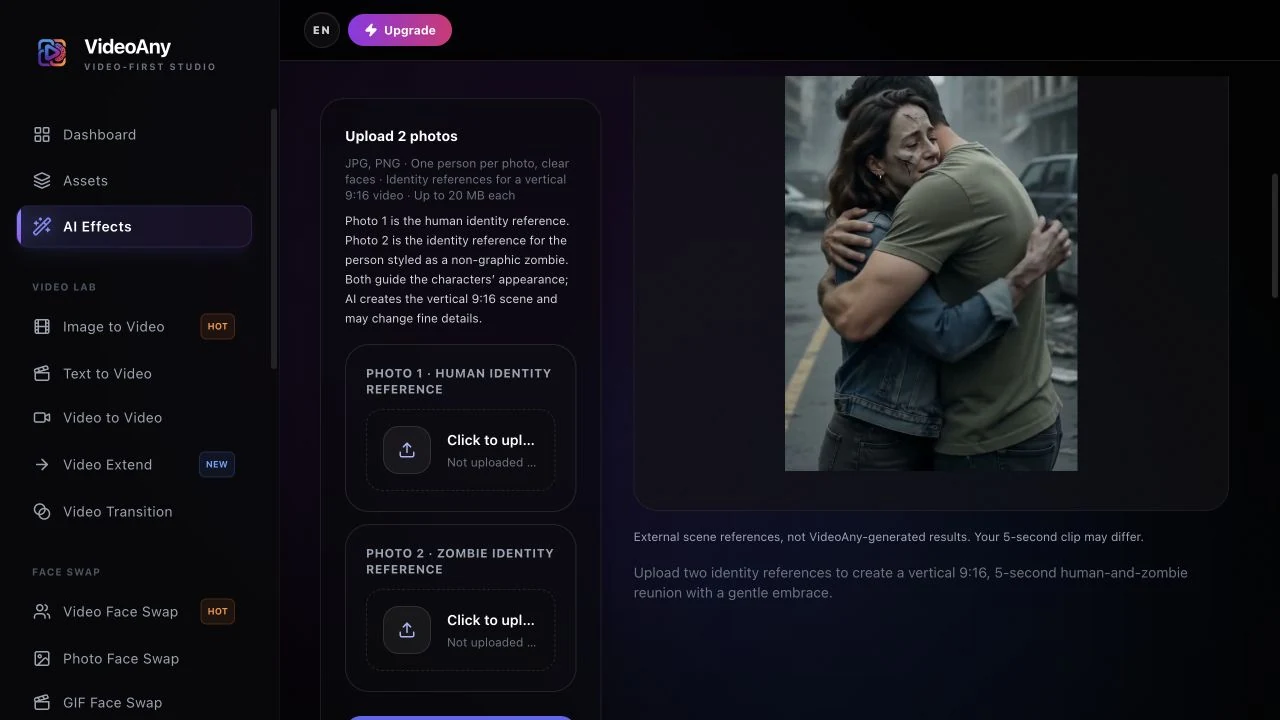
A zombie love story works when viewers can tell which partner stays human and recognize both people through the hug. Open the AI Zombie Couple tool with two individual portraits: Photo 1 defines the human, and Photo 2 defines the zombie partner. Generate one reunion and review the approach as carefully as the final embrace.
Choose the pair: Compare face size, sharpness and framing across the two portraits. A normal photo is enough for the zombie role; the scene adds the pale, non-graphic styling. Do not use a shared couple selfie as both references.
Decide before generating: These images identify two characters in a new vertical scene, rather than supplying a before-and-after transition. Correct reversed upload slots before starting, then keep the stronger portrait unchanged if only one identity needs a later attempt.
The AI Zombie Couple introduction explains the reunion’s meaning and visual direction. This guide follows the practical decisions: role order, facial separation and believable arm contact.
Categories: AI Creation Studio, Halloween, Photo to Video
Tags: AI zombie love story, AI zombie couple, Halloween AI video, photo to video, FYP FX effects
An AI zombie love story is a short fictional reunion: one person stays human, the other is styled as a gentle, non-graphic zombie, they recognize each other and share a quiet embrace. You do not need costumes, makeup, or a filmed set. You need two clear portraits and a tool that already knows the scene.
On FYP FX, use AI Zombie Couple. The current effect settings, as of October 16, 2026, are:
| Setting | Current value |
|---|---|
| Input | Two JPG or PNG photos, up to 20 MB each |
| Roles | Photo 1: human; Photo 2: zombie identity reference |
| Output | 5-second video, 720p, vertical 9:16 |
| Audio | Silent; no generated music, voices, or sound effects |
| Cost | 568 credits per generation |
Check the effect page for the latest settings and credit cost before generating. This guide covers photo choice, upload roles, generation, review, and downloading your clip.
What the effect creates
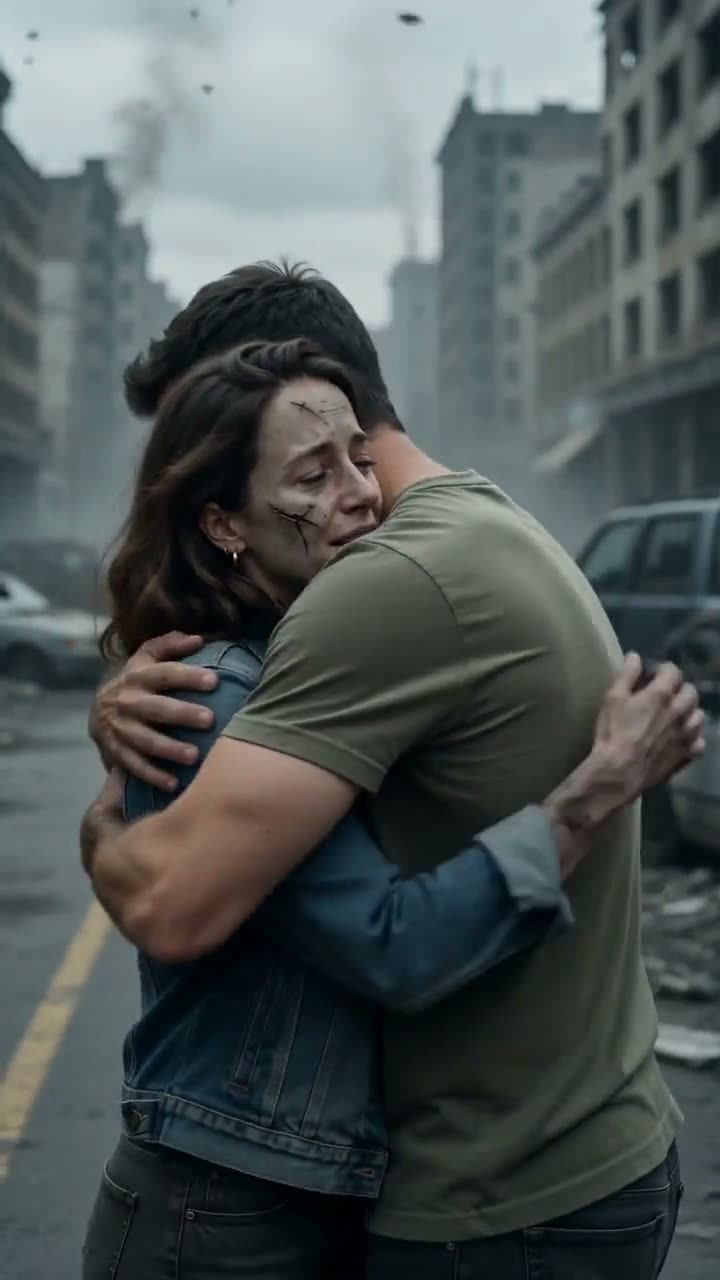
Photo 1 is the human identity reference. Photo 2 is the identity reference for the person AI is asked to style as a pale, subtle zombie. These are character references, not the first and last frames of the video. The fixed prompt asks for two distinct people in a moonlit reunion and gentle embrace. Facial details, clothing, and poses may change, so judge the whole clip rather than the opening frame alone.
The intended mood is tender Halloween storytelling. The prompt excludes blood, gore, wounds, and aggressive actions. These are scene instructions, so watch the full clip to check that the result fits your audience.
Step 1: Pick two clear individual photos
Use one person per image. Favor sharp, well-lit faces with eyes, nose, and mouth visible. Matching framing (both head-and-shoulders, or both waist-up) helps identity stay stable.
Skip group shots, sunglasses, heavy beauty filters, masks, and faces half-hidden by hair or objects. You do not need a couple selfie, and you do not need a real zombie-makeup photo for image 2. A normal portrait is enough for the zombie styling.
Only use photos you have permission to use, and make sure both people are fine appearing in a fictional romantic Halloween scene.
Step 2: Upload human first, zombie second
Open AI Zombie Couple.
- Upload one clear JPG or PNG in Photo 1 · Human identity reference.
- Upload the other person's JPG or PNG in Photo 2 · Zombie identity reference.
- Keep each file at or below 20 MB and check both previews before you spend credits.
The upload slots tell the prompt which person has each role. If the previews are reversed, correct the files before generating. This page uses a fixed scene prompt; there is no custom prompt to fill in.
Step 3: Check credits, then generate one test
Sign in and check the displayed cost and your balance. Confirm the amount on the effect page before submitting; each new take uses credits.
Select Generate once and allow several minutes for processing. Five seconds is the video length, not the generation time. Keep the page open while it processes. If progress cannot be confirmed, check your generation history before starting another task.
Start with one take. Keep it for comparison and replace only one reference photo at a time if you need to improve a face; each new generation uses credits.
Step 4: Review identity, embrace, and crop
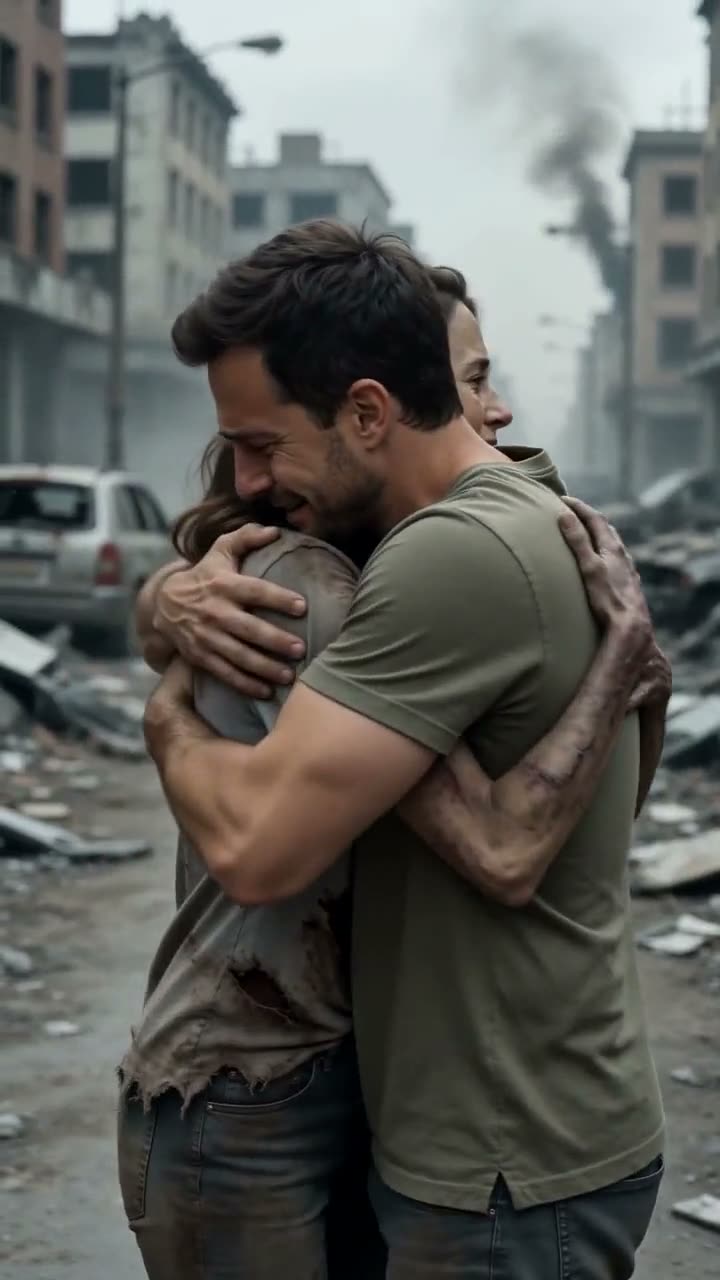
Watch the whole clip once, then scrub the recognition moment and the embrace.
Check for:
- Face drift on either person
- The wrong person receiving zombie styling, despite the intended upload roles
- Merged hands or bodies during the hug
- Faces cut off in a vertical 9:16 crop
If only one face drifts, replace that portrait with a sharper one and keep the other file. If the roles are wrong, compare the previews with the slot labels first. Correct reversed uploads; if they were already correct, the model may have mixed the roles. Try clearer, visually distinct portraits while keeping Photo 1 as the intended human and Photo 2 as the intended zombie. Keep the take where both people stay recognizable through the embrace.
When you are happy with the result, select Download video. Save the file before preparing captions or adding audio in your editor or publishing app.
Edit a TikTok zombie love story around the embrace
Keep the recognition and approach before the hug so the clip has a small story arc. At phone size, check that both faces remain visible and that any caption clears the point where the arms cross. “I’d still know you” is one possible fictional-story caption; choose wording that fits the people and mood in your own edit.
The output is already vertical 9:16. Avoid another tight crop that removes a face as the pair draw together. Add any soundtrack separately, preview it against the completed motion and make the AI-generated fiction clear when sharing.
Troubleshooting before another generation
- The task is still running or the page reports a progress error: check your generation history before trying again. A missing preview does not prove that the submission failed.
- The credit status is unclear: check the task and your balance, then contact support if the status remains uncertain. Do not submit repeated jobs while resolving it.
- One face changes or the two identities merge: use separate, sharp photos with similar framing, unobstructed faces, and one person in each image. Replace the weaker reference first instead of changing both at once.
- The embrace hides a face or crops it out: try waist-up portraits with space around the head and shoulders. The scene is generated in vertical 9:16, so the original crop is an identity reference rather than a guaranteed final composition.
- The wrong person becomes the zombie: check the Photo 1 and Photo 2 labels. If the uploads were already correct, preserve the intended roles and try clearer references; reversing correct inputs is not a reliable fix.
FAQ
Which photo becomes the zombie?
The prompt assigns zombie styling to Photo 2 and keeps Photo 1 human. Check the finished clip because AI can mix the roles.
Can I use one couple photo?
Use two separate images with one person each. If both people appear in each reference, it is harder to tell which identity belongs in which role.
Why do the partners merge when they hug?
The embrace makes faces, shoulders and arms overlap. Try clearer individual portraits with similar framing for a later take, keep the intended role order, and inspect the contact moment again. Input changes cannot guarantee separate anatomy.
Do I need a prompt or a reference video?
No. The effect page already includes the scene direction. You supply the two identity photos.
Is it free?
The current setting as of October 16, 2026 is 568 credits per generation. Check the effect page and your balance before you start.
Will it look gory?
The effect aims for pale, non-graphic styling and a tender mood. Results can still vary, so review before posting.
Make your clip
Choose two portraits, open AI Zombie Couple, and place the intended human in Photo 1 and the intended zombie in Photo 2. Check the current cost, generate one take, then review both identities and the embrace before downloading.
For a one-photo Halloween scene, follow the AI broom riding video guide or the AI ghost prank video guide. You can also explore AI Pumpkin Head.