AI Ghost Prank Generator: Ghost Behind Your Shoulder
Animate one calm selfie into a ghost-behind-the-shoulder reveal. Start with enough background space for the ghost to appear without covering the person.
Avoid face-only crops and objects filling both shoulders. The ghost needs visible background to rise into; check that it does not cover the person’s eyes or mouth.
568 credits per 5-second video
External scene references, not FYP FX-generated results. Your 5-second clip may differ.
Choose the reveal area before uploading
- Show one person facing the camera with the whole face visible; a calm expression fits the unaware-subject setup.
- Leave background visible above or beside a shoulder. Avoid a second person, a large hat or a tight crop in that space.
- Use enough light to separate the face from the room; a very dark image makes the ghost silhouette harder to judge.
Sign in and check your credit balance. View credit plans.
Keep the ghost behind the subject
- The ghost’s size, translucency and distance from the cheek can vary.
- The scene aims to retain the original room, but details and lighting may drift.
- This creates a fictional reveal, without a filmed reaction or a generated scare sound.
Before posting a TikTok ghost prank, preview the smallest phone-sized version: the ghost should still be visible beside the shoulder without hiding the main face.
Preset details reviewed by FYP FX ·
Compare the shoulder-space compositions
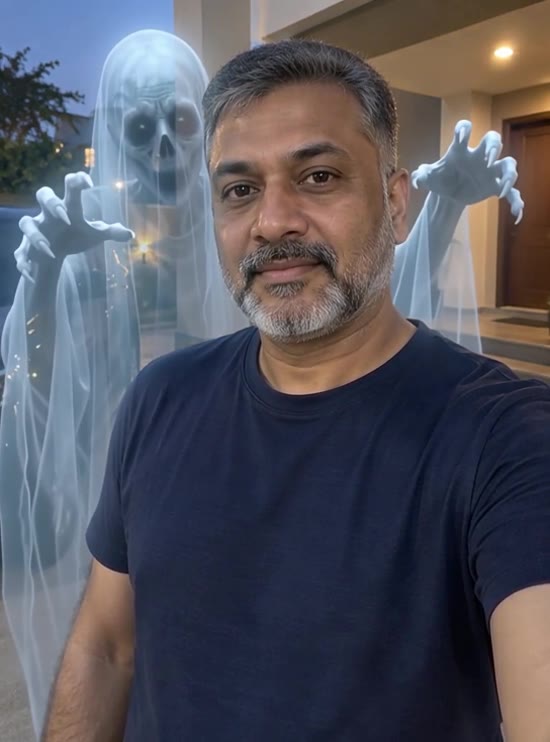
Both external references leave the person facing the camera while a ghost occupies the background beside a shoulder. Look at the separation between the two faces, rather than treating the stills as an animation preview.
Man with a ghost reference
A man faces the camera with a translucent ghost behind his shoulder.
GoEnhance ↗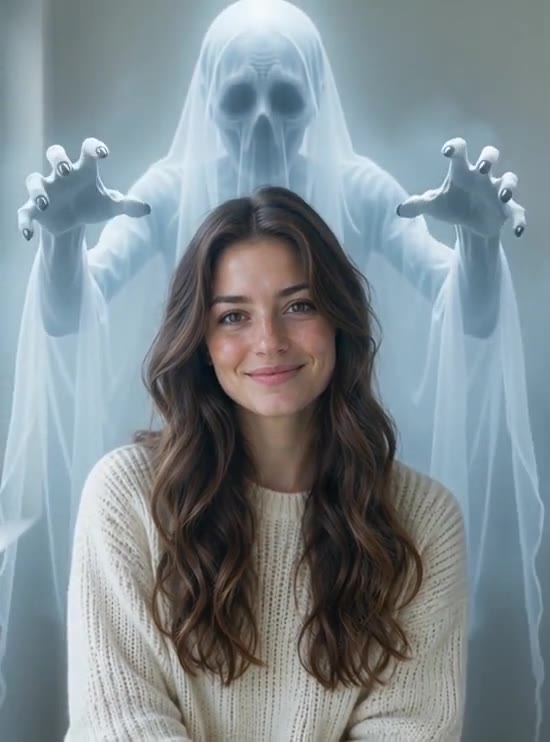
Indoor ghost reveal reference
A smiling woman appears indoors with a pale ghost behind her.
GoEnhance ↗External scene references, not FYP FX-generated results. Your 5-second clip may differ.
Set up and review the shoulder reveal
A clear face and a free patch of background give you two specific things to inspect in the result.
Leave a shoulder free
Upload one selfie or half-body portrait with an uncovered face and open background beside a shoulder.
Generate the slow ghost reveal
Check the 568-credit cost and select Generate once. The ghost is added behind the subject using the fixed scene direction.
Replay the ghost’s entrance
Check the frame where the ghost first appears and its pause near the cheek. Keep a take with a clear main face and readable reveal.
Ghost reveal framing and generation questions
Look at the upload preview for open space above or beside a shoulder. A looser crop is a more useful change for a later attempt than another face-only selfie.
There is no left/right control on this tool. The scene direction places the ghost behind a shoulder, and the exact position is generated.
No. This preset accepts one image containing the person and background. Choose a single portrait with enough room for the reveal.
Replay the rise and final pause. Check that the main face remains coherent, the ghost stays behind the subject and the reveal is visible in the source photo’s aspect ratio.
Yes. A generation costs 568 credits for the silent video. Add any soundtrack after downloading; audio is not part of this preset.
The scene is generated from the image, rather than a ghost pasted onto a locked background. Use a sharp, evenly lit source, then review room and face continuity.
The output is a silent 5-second, 720p clip. Generation can take several minutes. Check history and task status before submitting again if the preview is missing.
Turn the empty background into the reveal
Upload a selfie with shoulder space, then check exactly where the ghost enters and pauses.