Quick answer
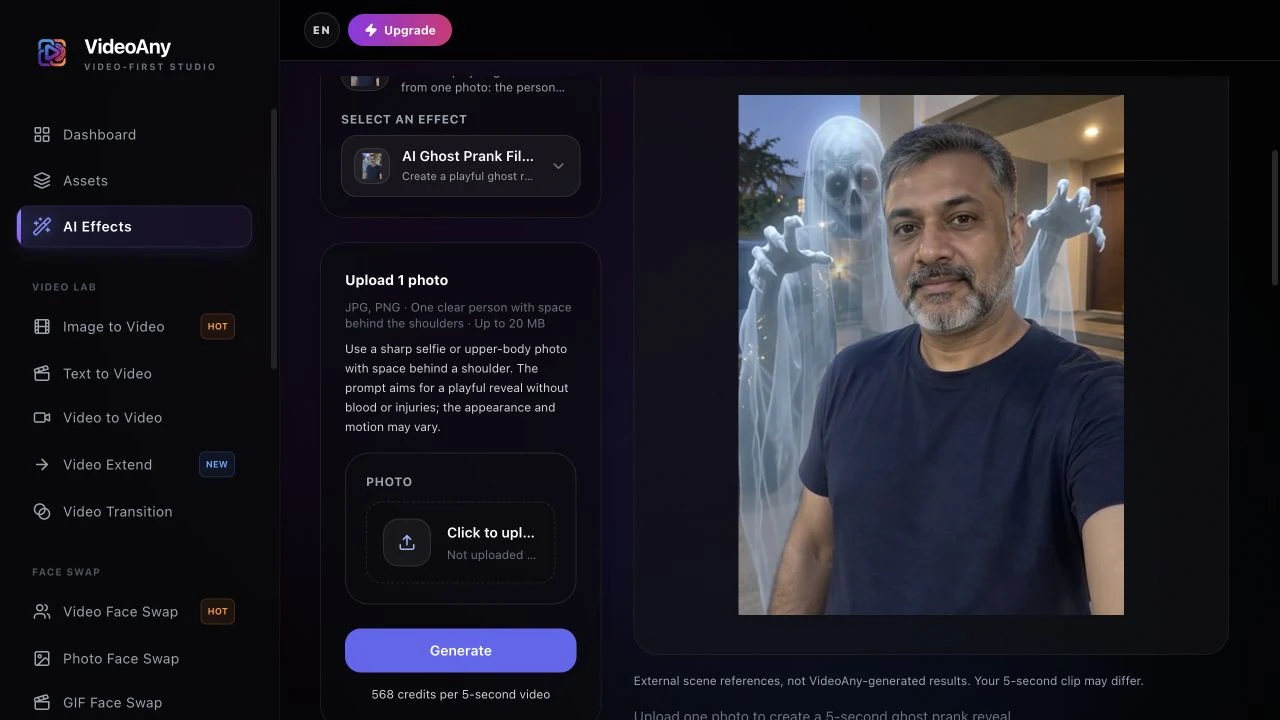
The useful input for a ghost-behind-you video is an ordinary selfie with an empty patch of background beside a shoulder. In the AI Ghost Prank Filter tool, that space becomes the reveal area while the person is intended to remain calm and face the camera. Judge the moment the ghost rises, not only the frame where it is fully visible.
Find the reveal space: Keep the main face uncovered and leave room above or beside one shoulder. A second person, tall chair or tight face crop can compete with the ghost’s entrance.
Choose the kind of prank: This preset creates a slow, fictional appearance behind an unaware subject. It does not record a frightened reaction or supply a loud scare sound. A calm or smiling source fits that setup.
Read the ghost prank effect introduction for the scene definition. The steps below show how to frame the upload and diagnose a hidden, cropped or face-obscuring ghost.
Categories: AI Creation Studio, Halloween, Photo to Video
Tags: AI ghost prank filter, Halloween AI video, photo to video, FYP FX effects
A ghost prank photo effect sets up a short visual scare: the person in your photo stays facing the camera with a calm or smiling look, while a grey, long-haired ghost slowly rises into view behind their shoulder. You do not need a live camera filter, a green screen, or a jump-scare set. You need one clear photo and a tool that already knows the scene.
On FYP FX, use AI Ghost Prank Filter. The current effect settings, as of October 16, 2026, are:
| Setting | Current value |
|---|---|
| Input | One JPG or PNG, up to 20 MB |
| Output | 5-second video, 720p; aspect ratio follows your photo |
| Audio | Silent; no generated music, voices, or sound effects |
| Cost | 568 credits per generation |
Check the effect page for the latest settings and credit cost before generating. This guide covers photo choice, generation, review, and downloading your clip.
What the effect creates
Your upload supplies the starting image. The fixed prompt asks the model to keep the person's face, body, clothing, room, and lighting recognizable while adding a translucent grey ghost with oversized pale eyes. Facial details, background, and motion may change, so judge the whole reveal rather than the opening frame alone.
The intended mood is a playful Halloween scare. The prompt excludes blood, injuries, gore, and lunging toward the camera. The ghost can still look unsettling, and AI results vary, so watch the full clip before sharing it with your audience.
Step 1: Pick one clear photo with shoulder space
Favor a sharp, well-lit selfie or half-body photo of one person with the face fully visible. Leave some background space over or beside a shoulder so the ghost has room to rise into frame. A front-facing photo leaves both eyes and the face outline visible for review.
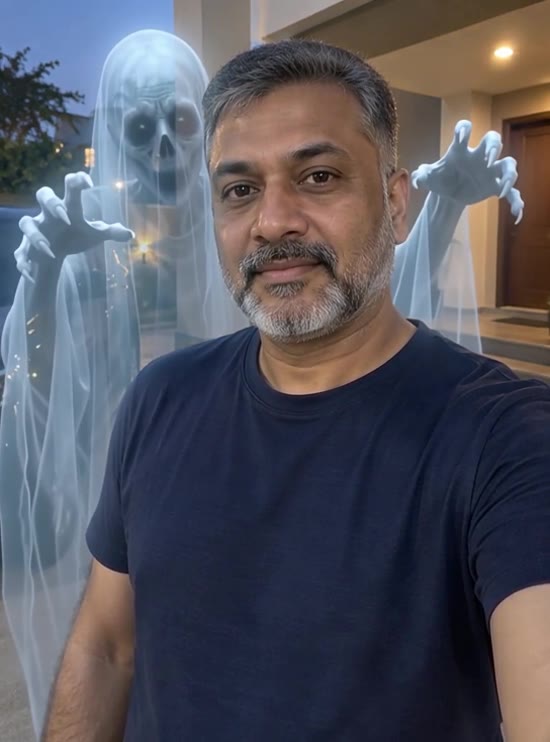
Skip group shots, tight face-only crops with no background, sunglasses that hide the eyes, heavy beauty filters, and faces half-hidden by hair or objects. You do not need a costume photo. Everyday clothes and a normal room work.
Only use a photo you have permission to use, and make sure the person is fine appearing in a fictional Halloween prank scene.
Step 2: Upload and preview
Open AI Ghost Prank Filter.
- Upload one JPG or PNG (up to 20 MB).
- Check the preview so the right person and framing are selected.
- Keep the photo you want to animate in the preview. This page uses a fixed scene prompt; there is no custom prompt to fill in.
If the preview looks wrong, replace the file before you spend credits.
Step 3: Check credits, then generate one test
Sign in and check the displayed cost and your balance. Confirm the amount on the effect page before submitting; each new take uses credits.
Select Generate once and allow several minutes for processing. Five seconds is the video length, not the generation time. Keep the page open while it processes. If progress cannot be confirmed, check your generation history before starting another task.
Start with one take. Keep it for comparison if you later try a photo with more shoulder space; each new generation uses credits.
Step 4: Review face, ghost, and reveal timing
Watch the whole clip once, then scrub the moment the ghost appears.
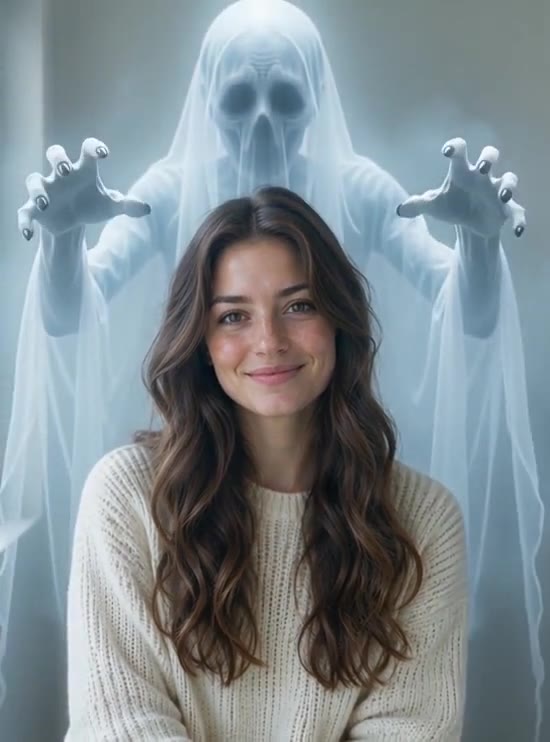
Check for:
- Face drift on the main person
- A ghost that looks bloody or gory instead of playful
- No room behind the shoulders (usually a tight crop)
- Unwanted captions or logos in the frame; the fixed prompt asks for no added text
If the face drifts, replace the photo with a sharper portrait and keep everything else the same. If the ghost never appears clearly, try a new photo with more background space behind a shoulder. Keep the take where the subject stays recognizable and the reveal is readable, not only the prettiest opening frame.
When you are happy with the result, select Download video. Save the file before preparing captions or adding audio in your editor or publishing app.
Prepare a TikTok ghost-behind-you reveal
Keep an ordinary-looking opening before the ghost enters. If you begin on the last frame, viewers see the ghost immediately and lose the slow-reveal setup. A short caption such as “Check the background” can point to the joke without covering the shoulder where it happens.
Preview your final TikTok crop at phone size. Make sure the ghost is still visible beside the person and that text does not occupy its entrance path. Add any sound in your editor, then check the scare level with that sound included. Present the scene as an AI-created prank rather than a real haunting.
Troubleshooting before another generation
- The task is still running or the page reports a progress error: check your generation history before trying again. A missing preview does not prove that the submission failed.
- The credit status is unclear: check the task and your balance, then contact support if the status remains uncertain. Do not submit repeated jobs while resolving it.
- The ghost is hidden or cut off: try a less tightly cropped photo with open background space beside or above one shoulder. Avoid a second person in that area.
- The main face or room changes too much: use an evenly lit, sharper photo without filters or an obstructed face. A clearer source can help the model, but cannot guarantee an unchanged face or room.
FAQ
How many photos do I need?
One. The effect is image-to-video from a single portrait.
How is this different from a TikTok or Snapchat ghost filter?
This workflow starts from an existing photo and generates a video. You do not need to record yourself using a live camera filter.
Can I move the ghost to the other shoulder?
The tool has no position control. A photo with more open space on one side provides a clearer reveal area, but the exact ghost placement is still generated.
Why does the ghost cover my face?
Check whether the original crop leaves room beside the shoulder. Try a less cramped portrait for a later take, and replay the whole rise; a readable last frame alone does not make the reveal usable.
Is it free?
The current setting as of October 16, 2026 is 568 credits per generation. Check the effect page and your balance before you start.
How scary is it?
The prompt aims for a playful reveal without blood or gore. A long-haired ghost with pale eyes can still be scary; review the result before posting.
Make your clip
Choose one clear photo with space behind a shoulder, open AI Ghost Prank Filter, check the current cost, and generate one take. Review the full reveal before downloading and adding your soundtrack.
For a lighter one-photo Halloween scene, read the AI broom riding video guide. For a two-person reunion, follow the AI zombie love story guide. You can also explore AI Pumpkin Head.