AI Barbie Slideshow Generator: Doll vs Real Video
Upload one portrait to create the stacked comparison: fashion doll above, realistic subject below. The single clip uses subtle animation rather than automatic slide changes.
Choose a face and hairstyle that remain readable at half-frame size. A mirror selfie is suitable only if the phone leaves the face clear; the output follows your source ratio.
568 credits per 5-second video
External visual references, not FYP FX-generated results. They illustrate the setting or style; the generated 5-second clip may differ.
Keep the face readable at half-frame size
- Choose one clear face with visible hairstyle and distinctive outfit colors.
- Leave space around the head and shoulders for the stacked layout.
- If using a mirror selfie, keep the phone away from the eyes and mouth; skip busy group images.
Sign in and check your credit balance. View credit plans.
Compare matching cues across the split
- One generation produces a single video, without a multi-photo sequence or separate still-image export.
- Both panels are generated; the lower realistic view can also differ from the original.
- The split, pose correspondence and facial details can vary, and the source aspect ratio is retained.
To build a TikTok doll-versus-real slideshow, extract a clear frame from the downloaded clip in an editor. Keep the split at the same height across slides and avoid captions over either face.
Preset details reviewed by FYP FX ·
Explore the doll-vs-real contrast
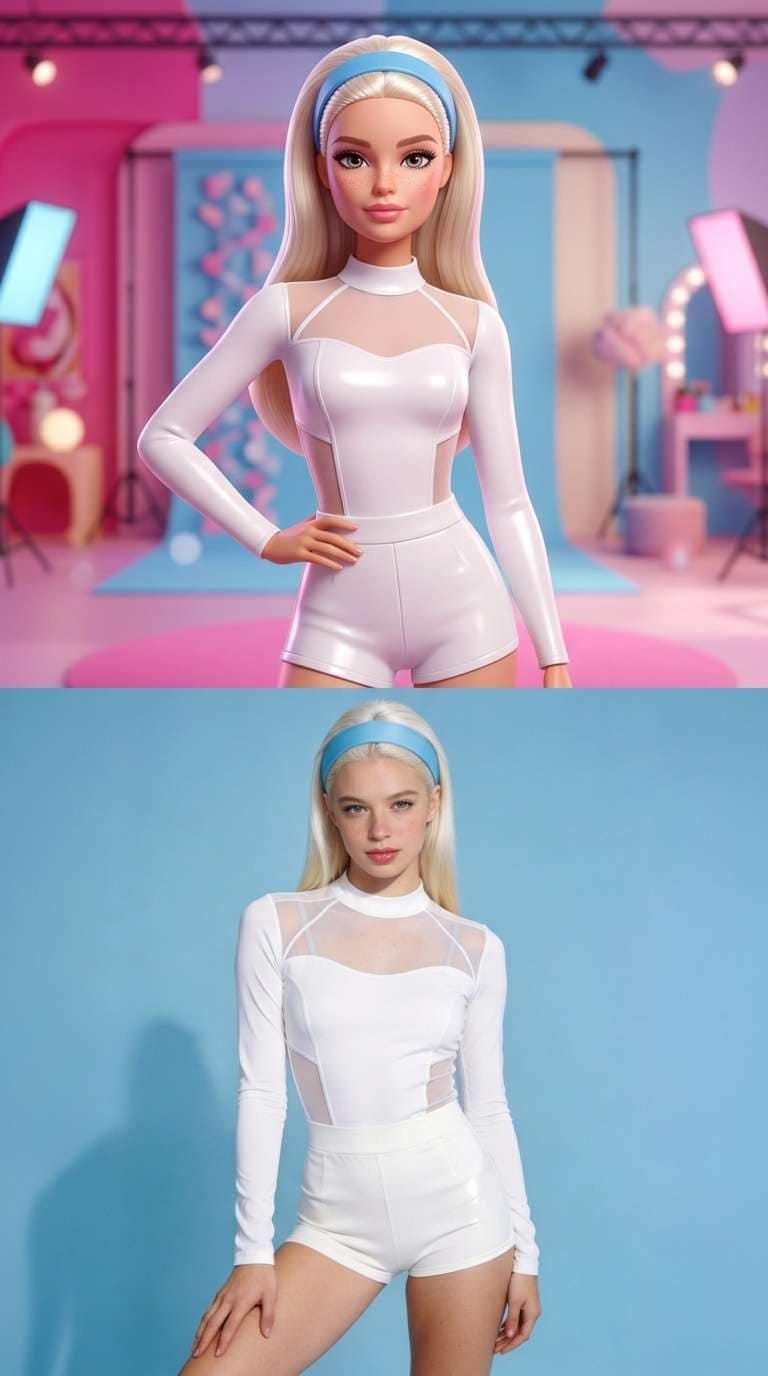
These references show the stacked doll-versus-portrait layout and the original portrait used to illustrate the face, pose and clothing.
Doll-vs-portrait layout
A blonde fashion doll appears above a photographic portrait in two stacked panels, with matching white clothing in both.
Media.io ↗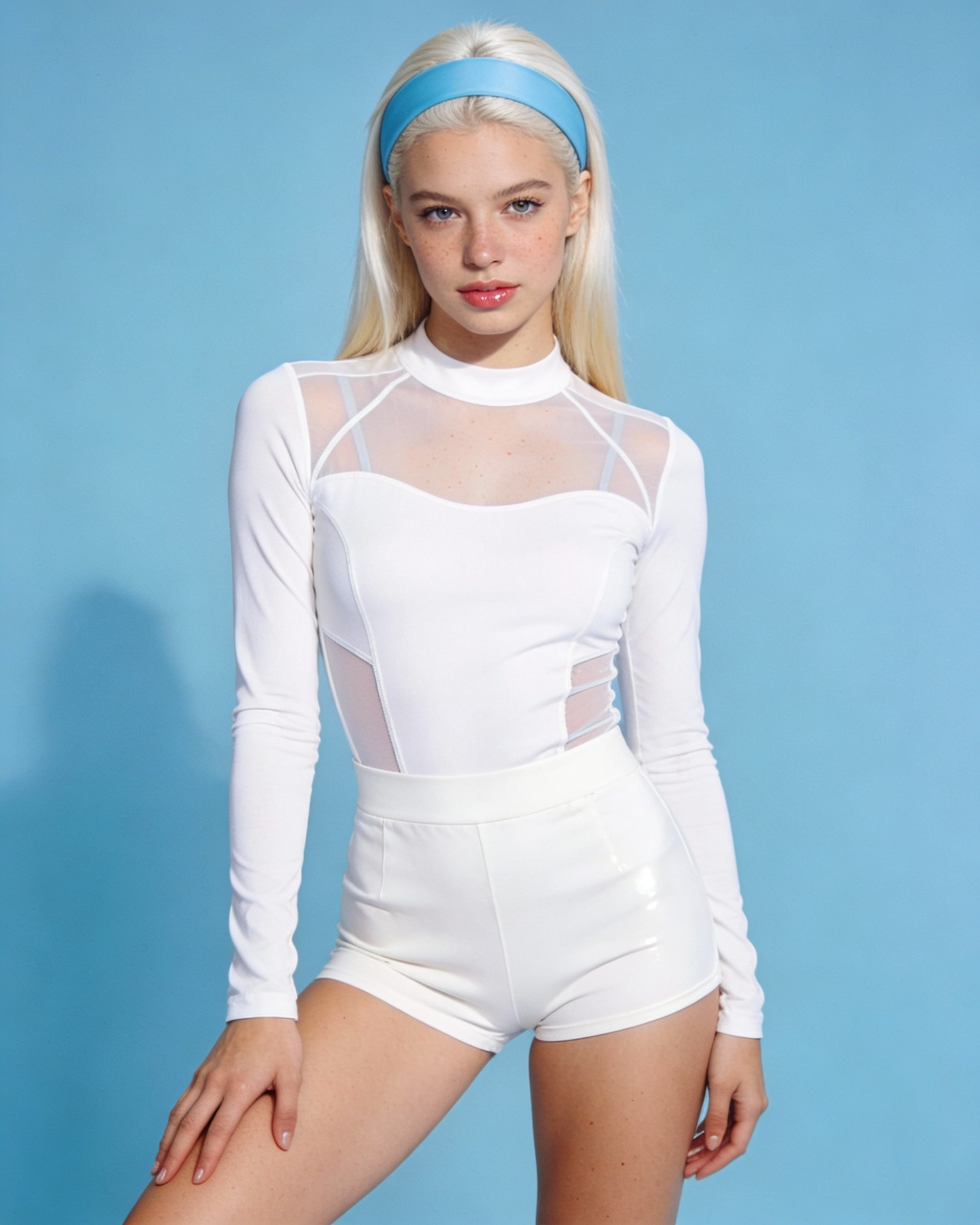
Original portrait reference
The original blonde portrait against a blue background is shown as a reference for the face, pose and white clothing.
Media.io ↗External visual references, not FYP FX-generated results. They illustrate the setting or style; the generated 5-second clip may differ.
Make one clear comparison first
Choose the portrait for recognizable shared details, then inspect both generated halves before editing slides.
Upload a comparison-ready portrait
Show one clear face, hairstyle and outfit, with room around the head for the stacked panels.
Generate the two-panel clip
Confirm the 568-credit cost and source crop, then select Generate once. One photo makes one silent 5-second video.
Compare both halves before editing
Check the pose, outfit colors and clean split line. Download the clip, then assemble any additional slides in an external editor.
Building your doll-versus-real edit
This tool has one photo input and creates one comparison clip. Generate other photos separately if needed, then combine clips or extracted frames in your editing app.
The studio downloads a video. To use a still for a TikTok photo slideshow, open that file in an editor and extract a clear comparison frame.
The upper view is restyled as a doll while the lower view is also rendered in the generated scene. Compare the major colors and posture; a simpler source pose may reduce ambiguity, but exact matching is not guaranteed.
One silent 5-second, 720p generation costs 568 credits. Creating clips for several photos means separate generations; the frame shape follows each source photo.
Each view takes about half the canvas. Choose a clear, moderately framed portrait with room around the hair, then preview the result at phone size before adding captions.
Check the source crop and panel height across the clips you assembled. Align them manually in your editor; this tool does not normalize several generations into one slideshow.
Check generation history and your credit balance first. Contact support if the task or payment status cannot be confirmed before starting another comparison.
Plan your doll comparison
Check credit plans, especially if you want separate clips for several slideshow images.