Start with one doll-versus-real comparison
To make a Barbie-style TikTok slideshow with this effect, first create one comparison clip: a doll interpretation above and a realistic portrait below. The Barbie Slideshow tool accepts one photo, so several comparison slides need to be prepared and assembled separately.
Choose a portrait whose hairstyle, pose and outfit colors will still be readable in two smaller panels. The effect introduction explains that layout; this guide covers checking the shared visual cues and keeping the split line consistent when you later build a slideshow.
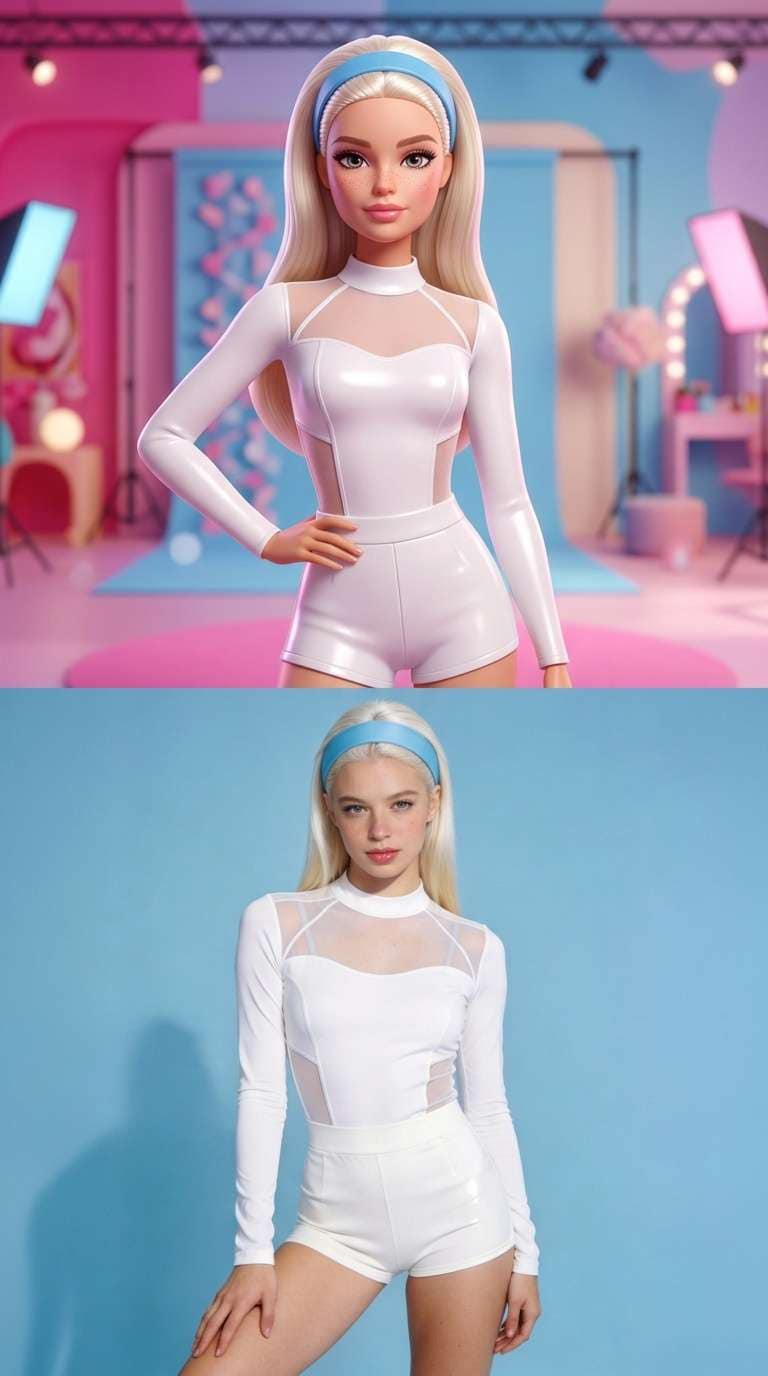
External visual reference from Media.io. Not a FYP FX-generated result.
The doll-vs-real look places two versions of the same person together: a glossy fashion-doll interpretation above and a photorealistic version below. Matching the pose, hair and outfit makes the comparison work. A small blink or hair movement can bring the pair to life without turning it into a busy action scene.
AI Barbie Slideshow on FYP FX creates one 5-second, 720p video for 568 credits. It accepts one photo, follows that photo’s aspect ratio and produces a silent clip. Despite the effect’s name, one generation does not assemble a multi-photo slideshow.
1. Start with a pose worth comparing
Choose a clear solo portrait with the face visible and enough body to show the outfit. A deliberate fashion pose, simple standing portrait or unobstructed mirror selfie can provide a useful comparison. With a mirror selfie, make sure the phone does not hide the eyes or most of the face.
Look for a readable hairstyle, clean facial detail and an outfit whose overall shape is easy to see. Strong beauty filters, a very small face or a crowded background can make both versions less consistent. Give the subject some room instead of cropping tightly at the forehead or chin.
Prepare the output shape before uploading. This preset follows your photo; a vertical source produces a taller canvas and a landscape source a wider one. Each version occupies roughly half the frame, so check that your chosen crop will still leave the face readable in both halves.
2. Upload one photo and confirm the preset
Open the effect and sign in. Select Click to upload, choose a JPG or PNG up to 20 MB and inspect the preview. Wait for the upload to finish before generating.
Check Silent · 720p, 5-second clip, the photo-based aspect ratio and 568 credits. The fixed preset develops the uploaded opening frame into the doll-above/real-below layout. You do not choose additional slides, upload a second version or write a doll-style prompt in this workflow.
Select Generate once when your image and balance are ready. Processing may take several minutes. If the page cannot check progress, review generation history before starting another task.
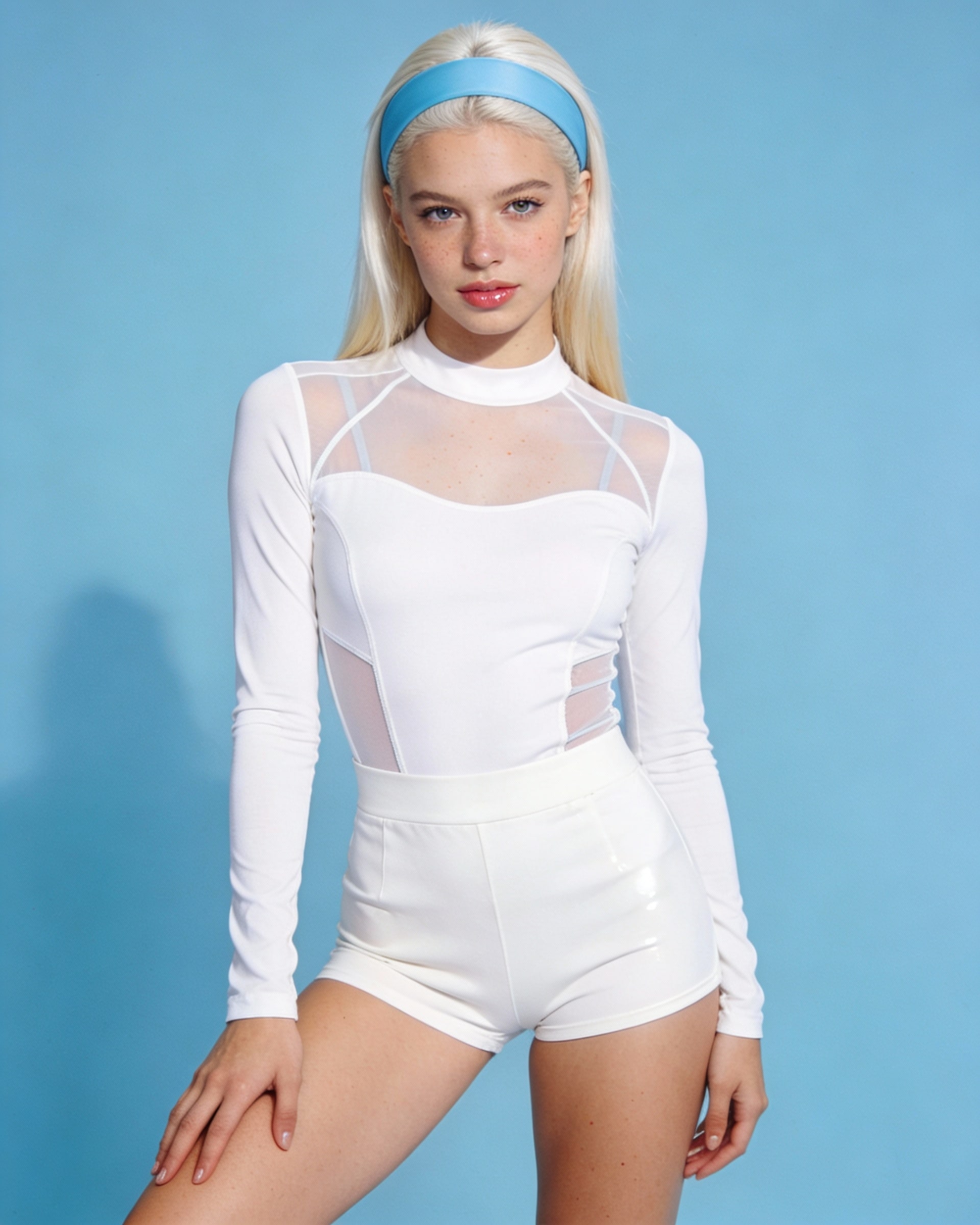
External visual reference from Media.io. Input-photo reference. Not a FYP FX-generated result.
3. Compare the two halves at the same moment
Watch the transition into the split, then pause during a clear hold. The upper half should suggest a glossy 3D fashion doll and the lower half a photorealistic recreation. Both are AI-rendered views, so the lower half can also differ from your original photo.
Check the following:
- Pose match: the head angle, shoulders and major outfit shapes should correspond across the split.
- Identity cues: hair, face shape and expression should still connect the two versions.
- Layout: the dividing line should remain clean rather than letting faces or limbs bleed between halves.
- Subtle motion: blinking, breathing and hair movement should leave enough stable time for viewers to compare.
A more dramatic doll design is not automatically the better take. The comparison matters most when viewers can tell both halves represent the same person.
If the halves look unrelated, try a simpler pose with a sharper face and more visible hair. If the layout feels cramped, use a looser crop before another attempt.
4. Assemble a Barbie-style TikTok slideshow after download
Use Download video to save the generated clip. If you want a still-image slideshow, open that video in an external editor and extract a clear frame. The effect studio downloads the video; it does not provide a separate still-frame export control.
For several slides, prepare additional photos and process them separately, then assemble the extracted frames in your editing or publishing app. Use the same source shape for the set. Align the split line and compare face size from slide to slide; a jumping divider or a sudden tiny face can distract from the doll comparison. Each separately generated clip uses credits.
Choose whether the post needs motion before you assemble it. A still comparison lets viewers study the two looks; the animated clip adds blinking and hair movement but remains a video. FYP FX supplies that one clip, while the photo-mode sequence, slide order and any soundtrack are arranged in TikTok or your editor.
Keep captions away from both faces and the split line so the comparison stays easy to read. Label the post as AI-generated. This is an independent fashion-doll effect rather than an official Barbie or Mattel product.
Two checks before adding the next slide
The upper doll looks unrelated to the lower portrait. What should I change?
Compare the hair outline, head angle and large outfit colors. If all three differ, try a simpler portrait with a clearer face and hairstyle. A more elaborate doll finish does not help if viewers cannot connect the two panels.
Why is the lower portrait changing when I wanted an untouched original?
Both panels belong to a generated video. The lower view is directed to remain realistic, but it is not a locked copy of the uploaded image. If your final edit requires an unchanged source still, place that original yourself in an external editor.