AI Moonwalk Dance Generator: Backward Glide Video
This tool is built around visible footwork. Upload a standing person with both shoes and clear floor space so the two backward glides have room to read.
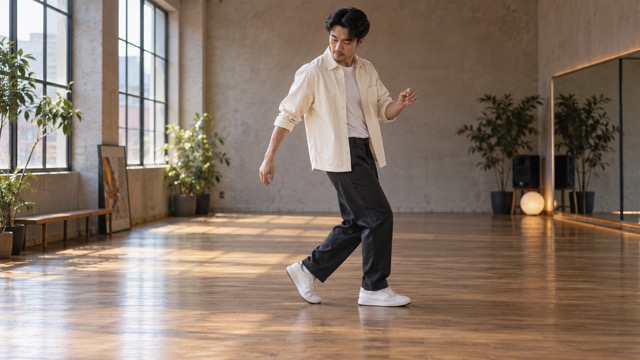
Both shoes and open floor are essential references. Avoid a crop at the ankles, crossed legs or furniture behind the feet; the camera is intended to keep the full body visible.
568 credits per 5-second video
External scene references, not FYP FX-generated results. Your 5-second clip may differ.
Keep the full glide inside your photo
- Include the person from head to both shoes, without cropping at the ankles.
- Leave visible floor behind the heels and some space at the sides.
- Choose separated legs and a simple floor; skip seated poses, crossed ankles and blocked feet.
Sign in and check your credit balance. View credit plans.
Judge the floor contact through both glides
- The camera and aspect ratio follow the source photo, so a tight input can constrain the footwork.
- A supporting shoe may float or slide unexpectedly; clean heel-toe motion is not guaranteed.
- The preset makes a short moonwalk phrase without a costume change, famous song or full routine.
Before posting an AI moonwalk on TikTok, replay at phone size with captions on. If the bottom text hides either shoe, move it higher and preserve the floor in your crop.
Preset details reviewed by FYP FX ·
Explore the moonwalk setup
Use these external references for full-body framing, visible shoes and clear floor space for the dance.
Full-body dance framing
A side-on full-body view keeps both shoes and the floor visible, with room around the dancer.
SuperMaker ↗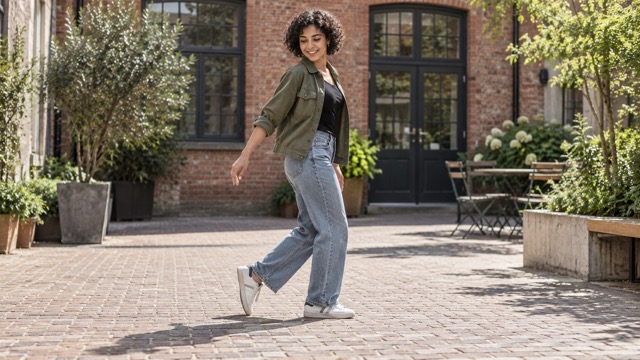
Heel lift and floor contact
Notice the raised heel on one shoe and the other shoe resting flat on the ground.
SuperMaker ↗External scene references, not FYP FX-generated results. Your 5-second clip may differ.
Make the feet your review priority
Choose the crop before generating, then inspect the alternating feet throughout the movement.
Upload both shoes and the floor
Choose one standing full-body photo with clear shoes, separated legs and room behind the heels.
Generate the two-glide phrase
Check the source crop and 568-credit cost, then select Generate once for a silent 5-second clip.
Replay the switch between feet
Check each raised heel, sliding flat shoe and the final balance. Download after confirming that the feet stay visible.
Making and reviewing your moonwalk
Replay the foot switch. The intended move keeps one shoe sliding flat while the opposite heel rises; lifting both feet into separate steps changes the illusion. A clearer standing pose and visible floor may help another attempt.
Choose a different source photo rather than relying on invented feet. This preset is designed around a full-body shot with both original shoes and floor visible.
Pause through both glides and compare the soles with the floor. Look for a gap beneath the supporting shoe, a foot sinking into the ground or legs merging during the switch.
One silent 5-second, 720p clip costs 568 credits. Its aspect ratio follows the source image, and another attempt is a separate generation.
The scene direction is fixed to a short two-glide phrase. There is no choreography or song input; add a soundtrack to the downloaded take.
A vertical center crop or bottom caption can hide footwork even if the generated file includes it. Fit the full body and some floor inside the edit before changing the source or generating again.
Check generation history and your balance first. If the task or credit status cannot be confirmed, contact support before another submission.
Plan your two-glide clip
View credit plans before starting the photo-to-moonwalk generation.