Quick answer
A pumpkin head transformation should still look attached to the same clothed body after the human face disappears. Open the AI Pumpkin Head tool with a portrait that shows the complete head, neck and shoulders. Review the replacement and final tilt for a floating pumpkin, a clipped stem or a second head underneath.
Frame for the replacement: Leave extra space above and beside the hair. The carved pumpkin can be wider than the original head; an unobstructed neck gives its base a clear place to meet the body.
Keep the right continuity: Facial likeness is intentionally lost when the jack-o’-lantern appears. Compare the outfit, shoulders and pose across the change instead. A hat, hand at the jaw or oversized headphones can make that boundary harder to read.
The pumpkin head effect introduction covers the intended leaves, sparkles and candlelit grin. This tutorial concentrates on the neck join, crop and readable before-and-after change.
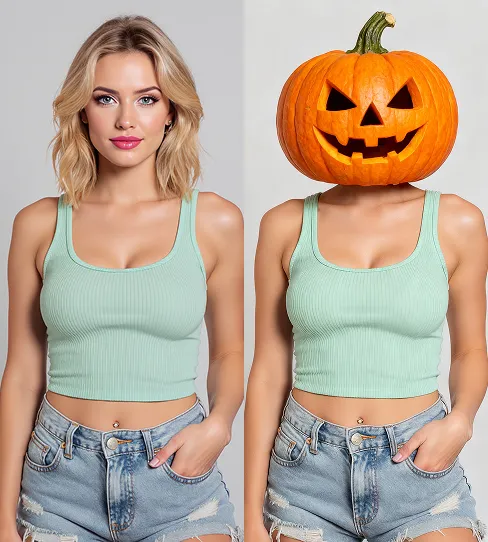
External visual reference from VideoWeb AI. Not a FYP FX-generated result.
A pumpkin-head video works when the ordinary photo remains recognizable until the Halloween reveal. A swirl of orange sparkles and autumn leaves builds around the head, then a carved jack-o’-lantern takes its place. The familiar outfit and setting make the transformation read immediately.
AI Pumpkin Head on FYP FX creates a 5-second, 720p video for 568 credits. It accepts one photo, follows that photo’s aspect ratio and produces a silent clip. The scene instructions are already set; you do not need to write a prompt.
1. Leave room for the pumpkin
Choose a sharp photo of one person with the complete head, neck and shoulders visible. A straight-on or gentle three-quarter angle gives the transformation a clear place to attach. Keep some space above the hair and beside the head so a wider pumpkin will fit without touching the frame.
Avoid a face-only crop, a hand covering the jaw, a large hat or a busy group portrait. Those details make the original head outline harder to read. A simple background is useful because the effect is designed to begin with your uploaded frame and keep the body, outfit and surroundings as references.
Crop before uploading if you want a particular shape. A portrait crop suits a vertical post; a landscape photo produces a wider composition. Changing the crop after generation may cut off the pumpkin’s stem or shoulders.
2. Upload the photo and start the preset
Open the effect, sign in and choose Click to upload under Upload 1 photo. Select a JPG or PNG up to 20 MB, then check that the preview shows the full head and the correct person. Wait for the upload to finish.
Check the displayed cost, output settings and photo-based aspect ratio. These are preset settings rather than a prompt editor or custom duration menu. Select Generate once when the image and balance are ready. Five seconds describes the video length; processing can take several minutes.
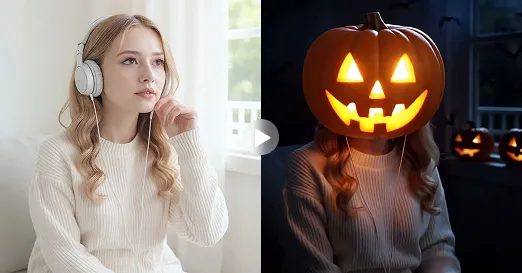
External visual reference from Flyne AI. Not a FYP FX-generated result.
3. Inspect the change, not just the last frame
Watch the opening, the moment the head changes and the final hold. A useful result should have a readable beginning and a pumpkin that feels attached to the same body.
- Neck connection: look for a natural join rather than a floating pumpkin or an extra human head underneath.
- Body continuity: compare the shoulders, clothing and hands with the opening photo. Large changes can distract from the reveal.
- Carved details: check that the eyes and smile remain coherent as the pumpkin turns, with warm light inside.
- Frame clearance: make sure the stem and sides stay visible through the gentle camera motion.
Your original face is intentionally replaced after the reveal. Judge continuity through the outfit, pose and body rather than expecting facial likeness to remain inside the pumpkin.
4. Fix the input before another attempt
If the pumpkin floats, start with a clearer upright portrait showing the neck. If it is clipped, use a looser crop. If several people change, replace the group image with a single-person photo. These changes address a specific problem; uploading the same ambiguous crop again may repeat it.
If progress times out or cannot be checked, review generation history before starting another task. That helps you avoid submitting a second request while the first is still unresolved.
5. Download and finish a TikTok pumpkin head transformation
Use the download icon labeled Download video after the result appears. Keep the short ordinary-portrait beat before the leaves and sparkles gather, so a TikTok pumpkin head transformation has a visible “before.” Do not trim straight to the finished jack-o’-lantern if the change is the point of the post.
Preview the stem, shoulders and neck join in your final crop. Place text below the pumpkin rather than across the carved eyes, and add music or a small reveal sound separately in your editor. The file has no soundtrack. An AI label gives the transformation useful context.
Why is the human face still visible under the pumpkin?
The intended result has one pumpkin head attached to the neck. A second face underneath is a generation problem, rather than a feature to preserve. For another attempt, remove hats or objects that hide the jaw and choose a clearer neck-and-shoulders reference.
Can I turn a whole group into pumpkin heads?
This preset is directed at one person. Use a single-person source for the intended transformation; a group image can create ambiguous targets or multiple unintended changes.