Quick answer
A gothic bride transformation is easier to judge when the face stays readable inside the drifting veil. Use the AI Corpse Bride tool with an upper-body portrait that leaves space above the head and around the shoulders. Inspect the costume change, shoulder turn and bouquet rather than choosing a take from its final still alone.
Frame the lace: An ordinary outfit is suitable. A clear face and roomy shoulder outline are more useful than an existing bridal costume, because the preset adds the gown, veil and flowers.
Know the design: This is a generic gothic Halloween bride with intact pale blue-grey skin. It does not recreate a particular film character. Keep the eyes uncovered and check that the lace and hands remain coherent as the person turns.
The gothic bride effect introduction describes the garden and costume direction. This tutorial covers photo framing and the details to inspect during that gentle movement.
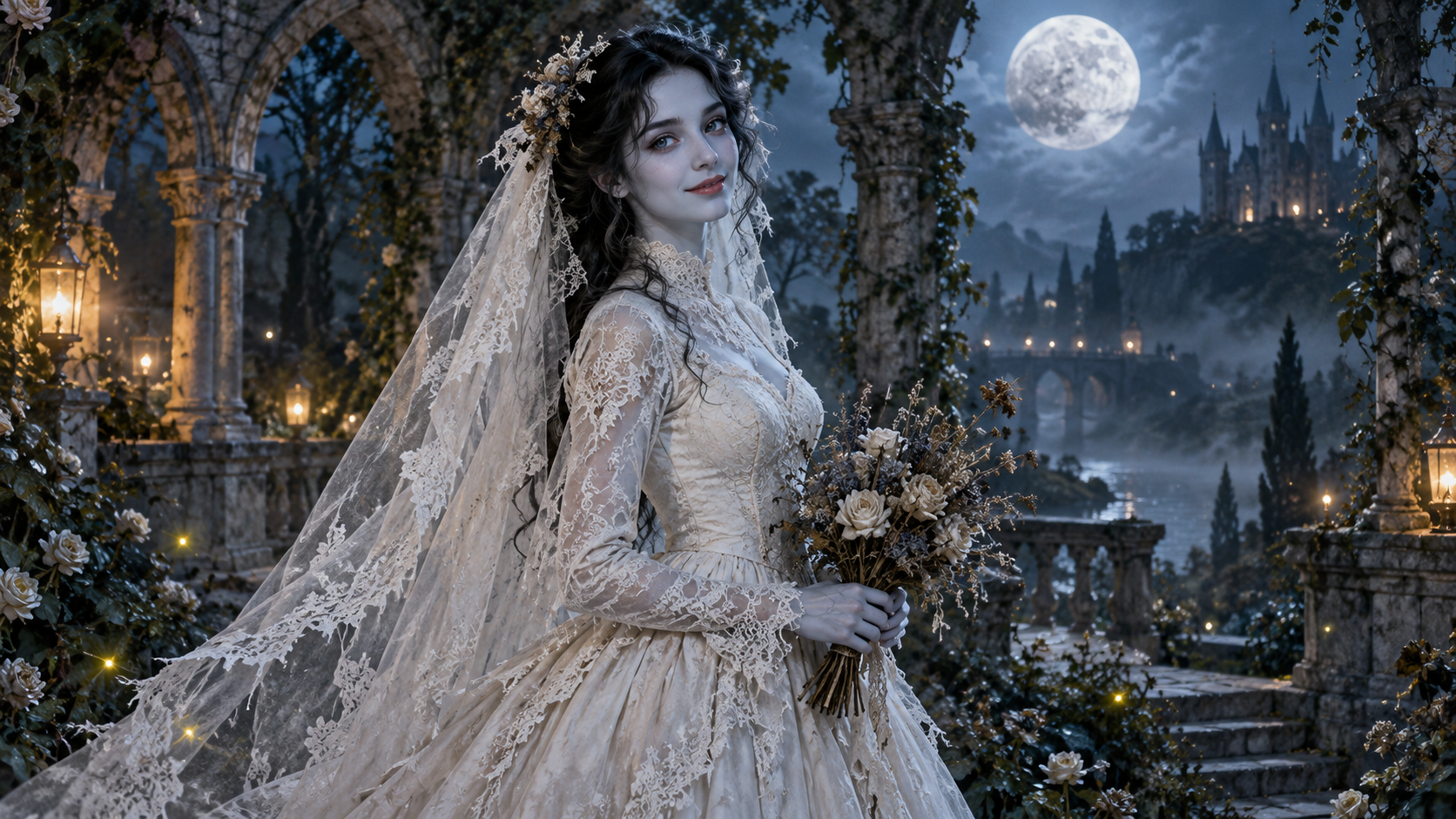
A gothic bride transformation works through costume, light and a small movement. A vintage gown, drifting lace veil and moonlit garden can establish the Halloween mood without a long action sequence. The AI Corpse Bride effect applies that direction to one portrait.
The preset creates a silent, 5-second, 720p clip for 568 credits. The aspect ratio follows your source photo. Check the price displayed on the effect page before generating. The illustrations in this guide explain the intended look; they are not examples of actual video output.
What the effect is designed to create
The scene direction begins with your photo, then asks for a fully covering, long-sleeved vintage wedding gown, a tattered lace veil and a small dried-flower bouquet. The setting gradually becomes a quiet garden with stone arches, cool moonlight and light mist. The intended movement is a slight shoulder turn followed by a soft smile.
The skin is described as intact and pale blue-grey, without wounds or exposed bones. This is a generic gothic bride design, not an official film effect or a recreation of a particular character. The preset aims to retain recognizable features and body proportions, but AI can change the face, clothes, hands or scenery.
Step 1: Choose a portrait with room for the costume
Use one sharp, evenly lit photo with the face and upper body visible. A front-facing or gentle three-quarter pose is easier to assess than a profile with the face mostly hidden. Leave room around the shoulders for the veil and gown; visible hands can also help you inspect the bouquet area later.
Avoid group photos, sunglasses, heavy filters and tight face-only crops. The photo does not need a wedding dress or a spooky background. Choose a photo you have permission to use.
Step 2: Upload and inspect the preview
Open AI Corpse Bride and sign in.
- Upload one JPG or PNG smaller than 20 MB.
- Check that the preview contains the right person and enough space around the shoulders.
- Replace an unsuitable photo before generating. The scene direction is preset; you do not need to write a prompt.
A vertical source remains vertical; a landscape source remains landscape. If you want a portrait edit for a vertical feed, prepare that crop before uploading, while keeping the upper body in view.
Step 3: Generate once and allow time
Confirm the displayed cost and at least 568 credits in your balance. Select Generate once. Five seconds is the video length, not the processing time; generation can take several minutes.
If the page times out or the progress cannot be checked, review your generation history and credit balance before submitting another task. Contact support if the task or billing state remains unclear. A new generation uses credits, so do not treat repeated clicks as a way to recover an uncertain task.
Step 4: Review the face, veil and bouquet
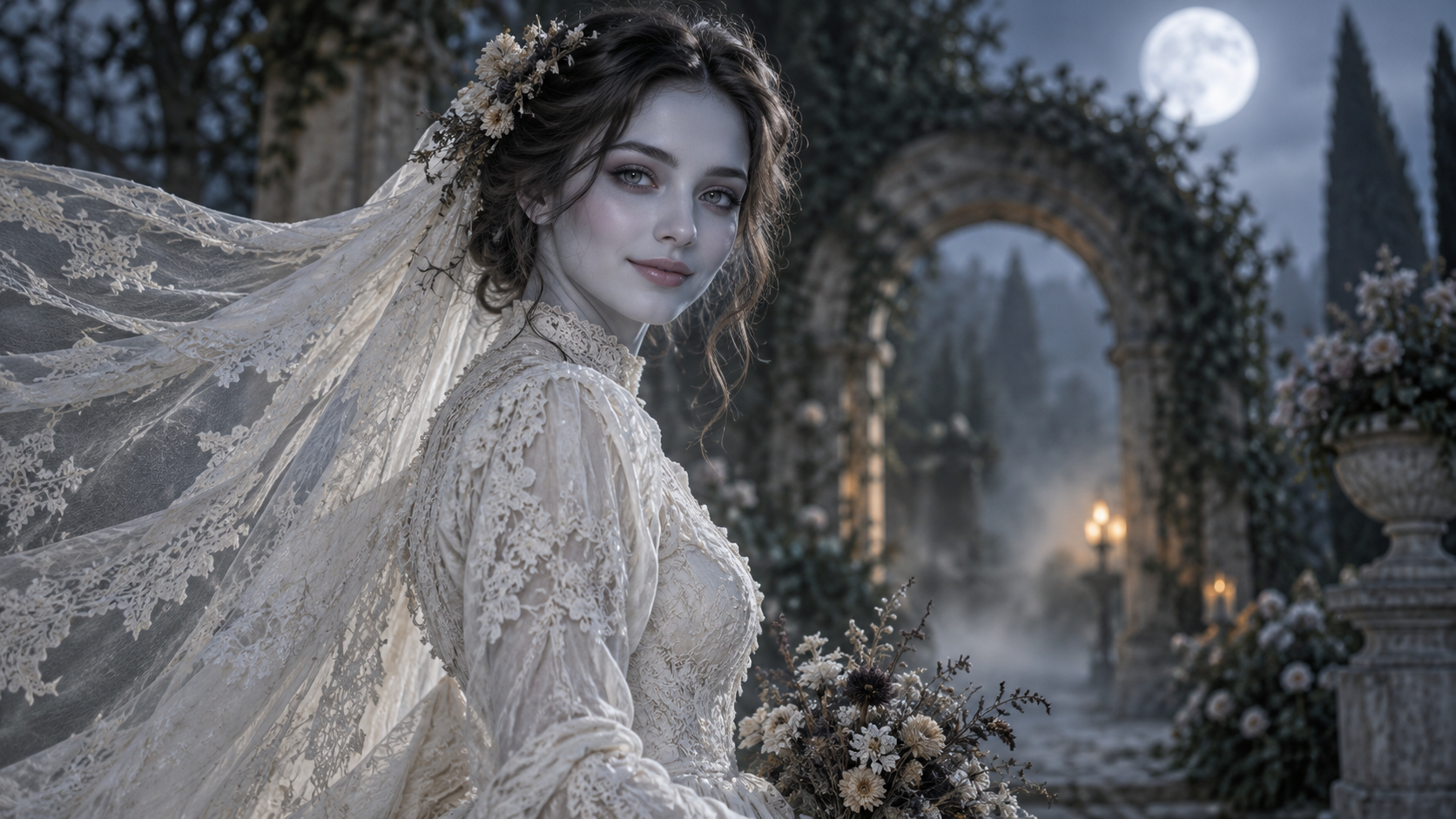
Watch the full clip, then pause near the beginning, during the shoulder turn and at the end. Check whether:
- The eyes and mouth remain coherent as the lighting changes.
- The veil drifts without hiding the face or stretching unnaturally.
- The shoulders, hands and bouquet remain plausible through the turn.
- The gown stays covered and the mood matches the look you intended.
If a completed result has facial drift, try a sharper, more evenly lit portrait on a later attempt. If the veil fills the frame, choose a wider crop. These changes may help but do not guarantee a particular result. Change one input at a time so you can compare takes.
Download and frame a TikTok gothic bride reveal
Save a suitable take with Download video and retain the costume-change opening before the final shoulder turn. Put any title clear of the eyes, veil edge and bouquet so those three details remain readable on a phone. The small turn can provide a transition point in a TikTok gothic bride edit; it does not need a fast cut over every frame.
Add music or ambience separately using audio you can share. If you want a loop, compare the opening portrait with the final gown and pose: they are different states, so a short transition may work better than a hard repeat. Preview the full edit and disclose the AI transformation.
FAQ
Do I need a bridal outfit in the original photo?
No. The preset asks the model to add the gown, veil and garden. A clear ordinary portrait is suitable.
Will the result match a film character?
The preset uses a generic gothic bride look and avoids a specific animated-film character design.
Can I choose the veil, dress or garden?
The scene direction is fixed. The tool has no separate costume controls, so inspect the generated gown and lace rather than expecting a selected dress to be reproduced.
Why does the veil cover my face?
Check for enough space above the head and beside the shoulders in the source. A wider portrait can give the veil more room on a later take, though it does not guarantee where the lace will move.
Does it include music?
No. Add audio after downloading. Every generated clip is five seconds long with this preset.
What should I do if a task seems stuck?
Check generation history and your balance first. If the status is still unclear, contact support before starting another paid task.
Make your clip
Choose a clear portrait with shoulder room, open AI Corpse Bride, and review one completed clip before deciding whether to generate another. For a different Halloween mood, explore AI Talking Skeleton or AI Pumpkin Head.