Quick answer
A readable flying-car clip connects a driver’s button press to a small gap opening between the car and the road. Upload a person portrait to the AI Tesla Roadster tool; the futuristic cockpit and short lift are generated around that driver. A photograph of a car alone does not supply the subject this scene needs.
The fictional flying-car introduction explains the effect’s scope. This tutorial focuses on a coherent cockpit gesture and lift-off for a TikTok AI flying-car edit. The result is sci-fi imagery, not a real Tesla demonstration.
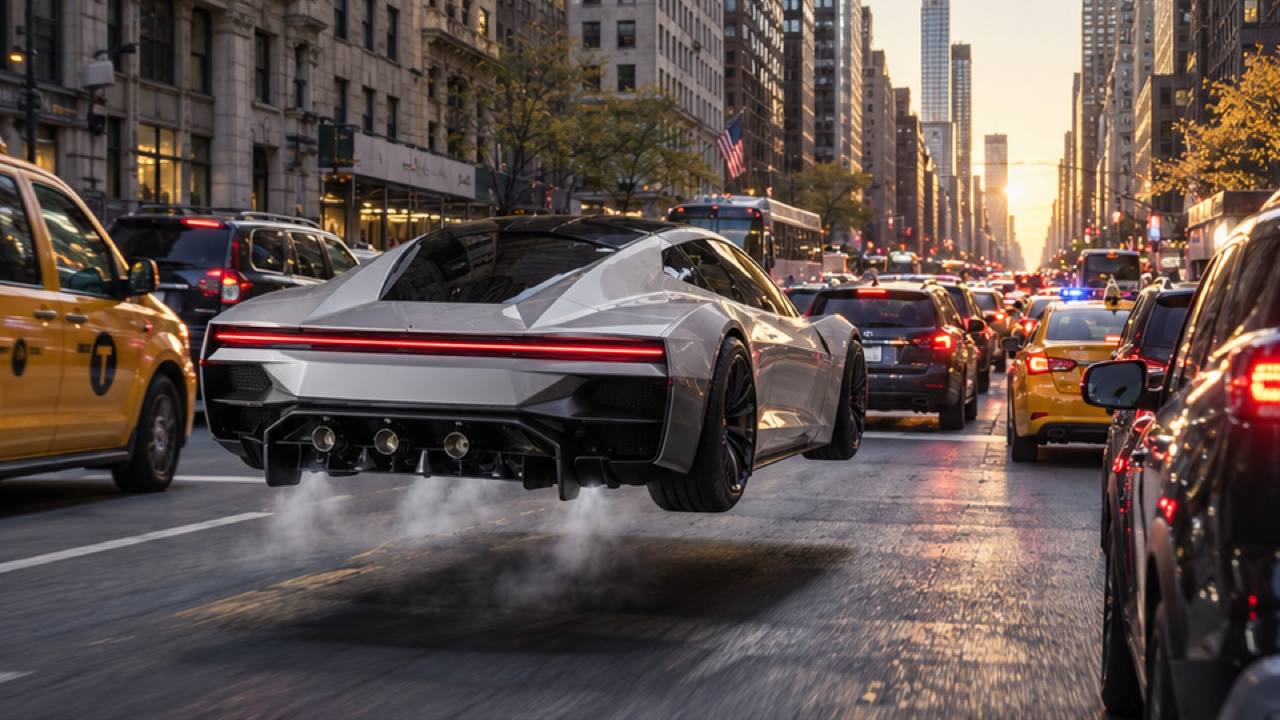
External visual reference: source image. Original creator attribution is unverified. Not a FYP FX-generated result.
A flying-car traffic escape needs only a few visual beats: a driver in a futuristic sports car, a button press and a short lift above the jam. Keeping the movement continuous gives the five-second scene a clear setup and payoff.
AI Tesla Roadster on FYP FX creates a 5-second, 720p video for 568 credits. One uploaded person photo supplies the opening frame and output aspect ratio. The preset develops a fictional white two-seat sports car and sunset traffic around the subject. The clip is silent; the effect’s trend name does not make it a real vehicle demonstration or guarantee an exact Tesla design.
1. Upload the driver, rather than a car photo
Choose one clear waist-up portrait with the face, hair and upper-body outfit visible. A relaxed pose and evenly lit face give a useful reference for the cabin scene. Leave room around the shoulders and arms so the new steering wheel and console gesture have space to develop.
Avoid a hand covering the mouth, dark sunglasses or a crop that cuts through the face. You do not need to be sitting in a vehicle. A clean solo photo is often easier to interpret than a picture taken through a reflective windshield.
The photo begins the video, then the scene is designed to transition into the car setting. The AI uses the person’s face and outfit as references, but likeness and small details can change. A very tight headshot also leaves more of the body and cabin position to be invented.
Choose the photo’s crop before uploading. A wider source can show more cabin and traffic context, while a portrait crop keeps the driver prominent. The preset follows that source shape.
2. Confirm the fixed scene settings
Open the effect and sign in. Select Click to upload, choose a JPG or PNG up to 20 MB, and check the preview. Wait until uploading completes.
Read Silent · 720p, 5-second clip, the photo-based aspect ratio and 568 credits. The button gesture, traffic and short lift come from the preset; this workflow does not provide a separate car configurator or custom flight prompt.
Select Generate once when your image and balance are ready. Processing may take several minutes. If a timeout or progress error appears, check generation history before submitting another task.
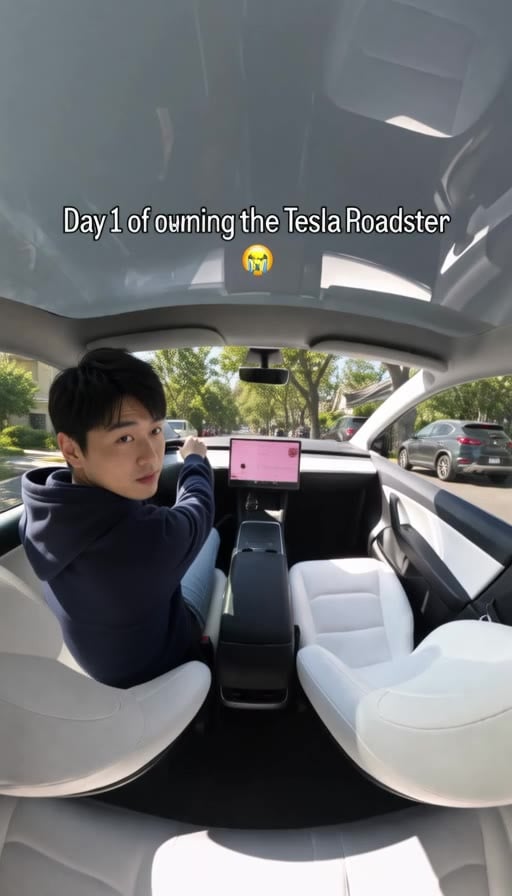
External visual reference from GoEnhance. Not a FYP FX-generated result.
3. Review the cabin and the lift as one movement
First watch the whole scene without pausing. The intended action is a brief console-button gesture followed by a short rise above traffic, with a continuous camera movement.
Then inspect the details that make the fictional escape readable:
- Driver likeness: compare the face during the cabin view with the original photo.
- Button gesture: look for a plausible hand moving toward the console, without fingers merging into the wheel or dashboard. A source photo with separated arms and a relaxed posture gives a clearer starting reference.
- Car continuity: check that the body shape, windows and cabin remain consistent as the camera moves.
- Lift: the car should visibly separate from the road while nearby traffic remains spatially coherent.
The face may become less prominent when more of the car is visible. Judge likeness where the driver can actually be seen, then judge the lift through the vehicle and road relationship.
If the driver’s face is unclear, replace a reflective or heavily filtered reference with a sharper portrait before another attempt. For a cramped cabin view, consider a wider source crop.
4. Keep the lift visible in a TikTok AI flying-car edit
Use Download video after the button gesture and rise form a continuous movement. Keep the moment before the car separates from the road; it gives the small lift a visible reference. When trimming or reframing, preserve both the driver at the control and the gap under the car.
The file is silent. Add a button click, lift sound or music afterward, matching the visible action rather than implying a longer flight. Keep captions clear of the face, hand and road-to-car gap. Identify the scene as AI-generated sci-fi and present the vehicle as fictional; the effect is independent of Tesla.
Can this show what a real Roadster will do? No. Generated controls, bodywork and hovering are scene elements, not vehicle specifications. Use a playful fictional caption rather than presenting the clip as product footage.