Build the short performance around the speaker and laugh
The useful visual beats in a Bulin 47 AI TikTok clip are the shoulder bounce, the lean toward the portable speaker and the closing laugh. Start with a front-facing portrait that leaves the lips and shoulders uncovered. A dark club background is unnecessary; the scene supplies its own red-lit doorway.
Open the Bulin 47 Freestyle tool to make the clip. The effect introduction explains the street-performance reference; this tutorial focuses on keeping your subject distinct, checking the speaker interaction and editing the final reaction without presenting it as an authentic artist recording.
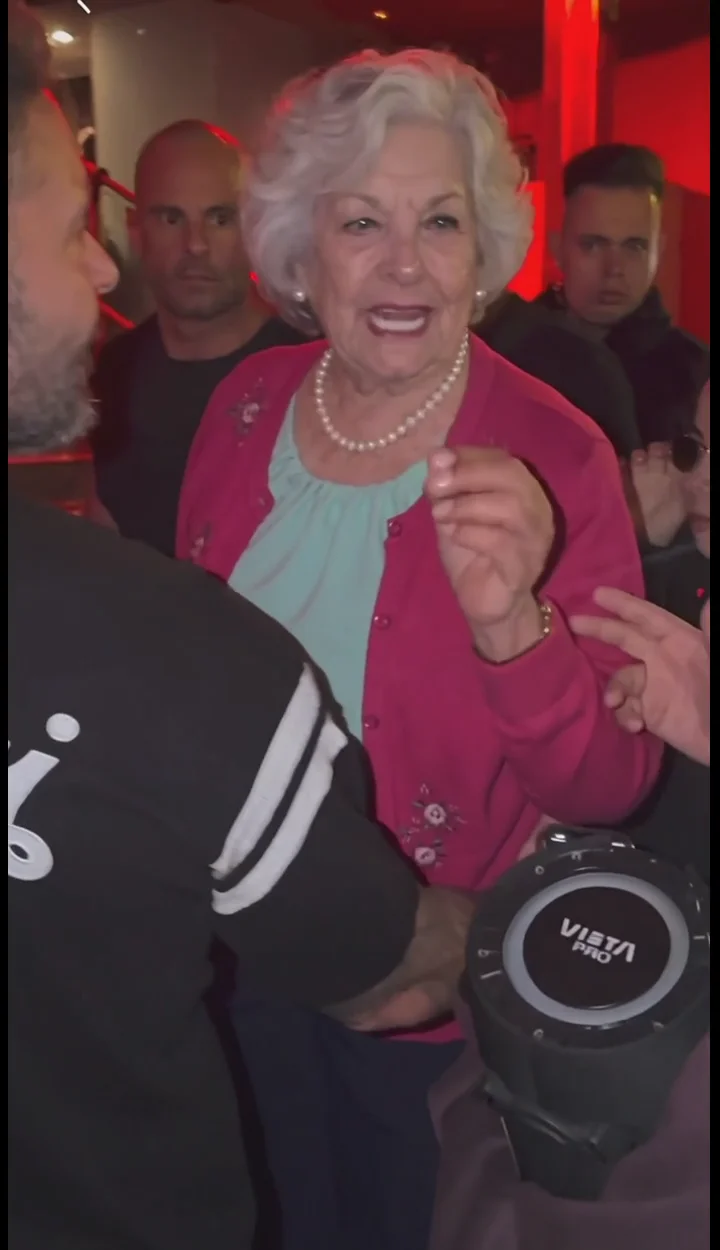
External visual reference from Bulin47 AI. Not a FYP FX-generated result.
The Bulin 47 freestyle look is recognizable through its setting and attitude: a red-lit entrance at night, a portable speaker held toward the performer and a few onlookers filming from the doorway. Small shoulder movements and a relaxed laugh can carry the scene in five seconds.
FYP FX’s Bulin 47 Freestyle effect uses one portrait to create a new performance scene. Its fixed preset is 5 seconds, 720p, portrait 9:16, at 568 credits. The output is silent. Mouth movement is visual performance, with no original recording, generated vocals or imitation of an artist’s voice.
1. Give the performer a readable face and posture
Choose one sharp photo of one person facing the camera, with the face and upper body visible. A neutral expression or small smile works as a starting point for the lean and final laugh. Leave space around the shoulders rather than cropping immediately under the chin.
Avoid harsh shadows across the eyes, a microphone blocking the mouth or a crowd where the main person is unclear. You do not need a red background, a speaker or a raised arm in the photo. The upload acts as an identity reference; the preset creates the night entrance around that person.
A daylight portrait is acceptable if the face is easy to read. Trying to match the scene by using a very dark nightclub selfie can remove exactly the facial detail the model needs. The generated lighting, composition and fine clothing details may differ from your input.
2. Upload and confirm the vertical settings
Open the effect and sign in. Use Click to upload in the single-photo slot, select a JPG or PNG up to 20 MB, and check the preview. Wait until the image has finished uploading.
Confirm Portrait · 9:16, 5-second clip, Silent · 720p and the 568-credit cost. The vertical framing comes from the preset, even when the reference photo is wider. There is no custom prompt or audio field to fill in for this effect.
Select Generate once when the image and balance are ready. Generation may take several minutes. If status checking fails or the task takes longer than expected, check generation history before starting again.
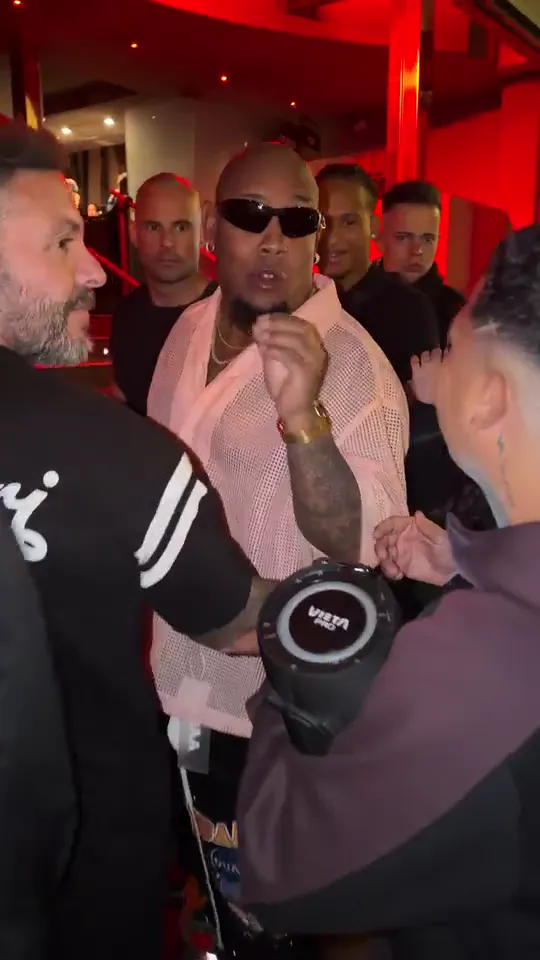
External visual reference from VideoBulin47. Not a FYP FX-generated result.
3. Check the actual movement sequence
The intended action is a short mouthed freestyle, a shoulder bounce, a slight lean toward the speaker and a relaxed laugh.
Watch for three specific issues:
- Face continuity: the face should remain readable during the lean, mouth motion and laugh, rather than changing into a different performer.
- Speaker placement: the speaker belongs near the main person, with the friend’s hand and the performer’s body remaining separate.
- Background separation: people filming in the doorway should stay background figures rather than becoming duplicate versions of the lead.
Some handheld movement suits the scene. Excessive shake that hides the face or loses the speaker makes the joke harder to follow. Pick for a clear interaction rather than the brightest red lighting alone.
4. Resolve a weak take with a clearer reference
If the face changes during the laugh, try a less filtered, front-facing photo. If the shoulders blend into another person, choose a single-person image with visible space on either side. If the mouth is malformed, remove inputs where a hand, hair or an object covers the lips.
The preset’s scene and movements are fixed. Changing the input can improve clarity, but it does not provide a way to request particular lyrics, a different gesture or exact choreography.
5. Give the Bulin 47 AI TikTok clip a reaction beat
Use Download video when the result is ready. The source is already vertical 9:16, so begin with that frame before applying any extra zoom. Keep the friend’s speaker in view: it explains why the performer leans toward that side.
Add your chosen sound in TikTok or a video editor, then place the final laugh near a natural musical break. The visual was not generated to match that recording. If the mouths do not match the lyrics, use the lean and laugh as reaction beats instead of forcing a lip-sync claim. Keep text outside the mouth and speaker area. Describe the result as an AI street-performance clip rather than an authentic Bulin 47 recording or an endorsed collaboration.