Leave room for the cloak around the upper body
Transform one portrait into a fantasy enchantress look with sparkles, a dark cloak and subtle makeup, followed by a small pose. Use the AI Enchantress tool to create the clip, or read the effect introduction for the intended sequence.
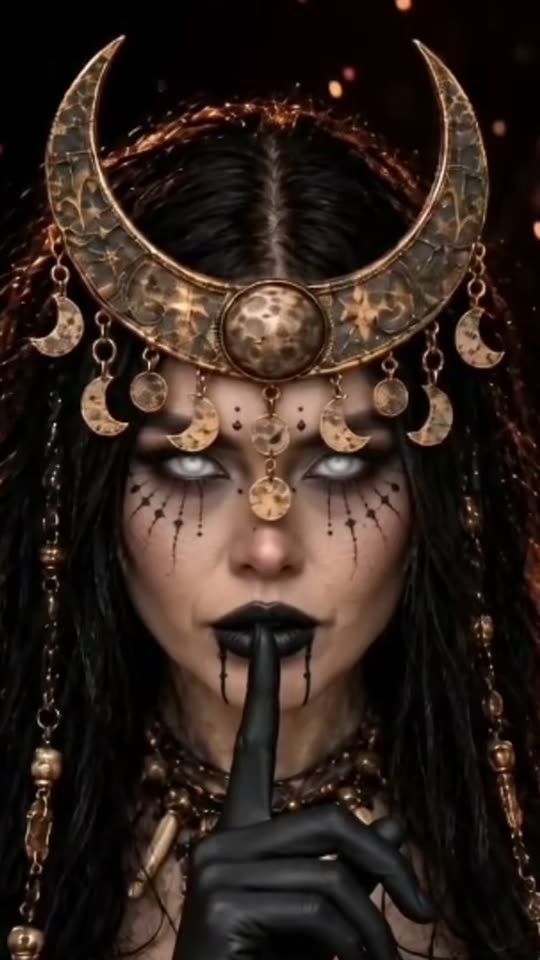
The preset creates a silent, 5-second, 720p video for 284 credits. The aspect ratio follows your source photo. Check the displayed quote before generating; five seconds is the finished clip length, rather than the processing time.
Step 1: Choose the reference for this sequence
The uploaded photo supplies the opening frame, with its original aspect ratio. Generated clothing, expressions and motion can still change details.
This preset starts from the uploaded photo. Keep the face sharp and include the neck, shoulders and torso so the cloak can form over the existing outfit and the small chin lift stays readable.
- Use one clear person with face, shoulders and some torso visible.
- Leave space beside the shoulders for cloak fabric.
- Keep the face, neck and shoulders unobstructed by other people or held objects.
Include some upper torso rather than just a face, and leave the hairline inside the crop. Leave the neck and shoulder outline readable so the small chin lift and high cloak collar can be reviewed together. The preset does not offer a hat or named-character variant. Use a photo you have permission to use.
Step 2: Upload and start one generation
Open AI Enchantress, sign in and upload one JPG or PNG up to 20 MB. Wait for the upload to finish and check the preview against the photo guidance above. Confirm your balance covers 284 credits, then select Generate once.
There is no costume, hat, makeup-intensity or named-character selector. Processing can take several minutes. If progress stops updating, check My videos and your balance before submitting again. Contact support if the status remains unclear.
Step 3: Review the full action and ending
A few soft sparkles appear near the shoulders and hair while the person remains covered. The outfit changes continuously into a generic dark cloak with subtle fantasy makeup. A small chin lift and confident smile lead into a final hold as the sparkles settle. These are the intended actions; generated timing, identity and object motion can differ.
Watch the full clip once at normal speed, then replay the contact points and ending:
| Check | What to review |
|---|---|
| Opening identity | The starting face and setting match the uploaded photo closely enough to assess the change. |
| Covered transformation | Fabric changes continuously while the person remains covered; the body outline stays coherent. |
| Cloak and makeup | The cloak follows the shoulders and the makeup does not erase the face. |
| Chin lift and ending | The neck stays connected naturally, the high collar moves coherently, and the smile settles without face reshaping. |
If cloak fabric hides the face, try more shoulder room and an unobstructed source. If the chin lift distorts the neck or collar, try a sharper source with those outlines visible. Each new generation uses credits, and a different source does not guarantee a corrected result.
Step 4: Download and finish the timing
Use Download video in the studio, or open the completed result in My videos. After downloading, add a soft sparkle or transition sound as the cloak forms. A still of the source photo can extend the before view in your editor.
Music, captions and trims are editing steps after downloading. If you share the result, identify it as AI-generated so viewers understand that the scene or movement is newly created.
FAQ
Can I choose a particular comic or film character?
No. The preset uses a generic fantasy cloak and makeup, with no character selector.
Does the effect remove clothing during the change?
The preset requests a continuous, fully covered costume transformation. Review the fabric and body outline because AI can still produce unintended changes.
How is this different from Halloween Costume Transformation?
Enchantress focuses on a dark cloak, sparkles and subtle makeup. Halloween Costume Transformation uses a grey robe, orange trim and a plain witch hat.
Choose a suitable photo and create a AI Enchantress video. The effect introduction has a quick summary of the photo requirements and limitations.