How to add fireworks to a photo
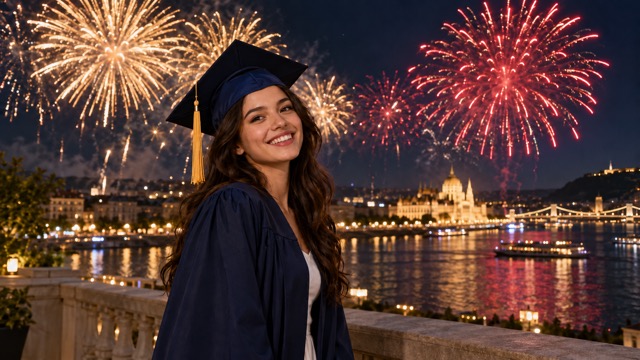
To make an AI Fireworks video, choose a photo with a clear main subject and open sky above, upload it to the AI Fireworks generator and select Generate after checking the quote. Your photo becomes the opening frame. The preset then requests rising trails, colorful bursts and drifting embers behind the subject.
The effect suits birthday greetings, New Year posts, graduation announcements and other celebrations. You do not need actual fireworks in the source photo. Add your own date, greeting or countdown after generation; there is no custom-text control in this preset.
| Before you start | Current setting |
|---|---|
| Upload | One photo, JPG or PNG, up to 20 MB |
| Best starting composition | Clear main subject with open sky above |
| Finished video | 5 seconds, 720p, silent |
| Framing | Follows the source photo’s aspect ratio |
| Generation price | 284 credits at the current quote |
| Controls | Fixed sequence; no color palette or skyline selector |
The five-second setting describes the finished video, not the processing time. This guide is based on the configured preset and does not report a reviewed FYP FX video generation.
1. Compose the photo around the sky
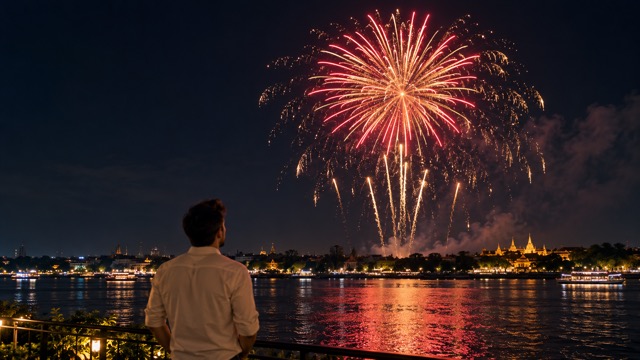
The fireworks need space in the same frame as the subject. Prefer a wider portrait or an outdoor shot where the face sits below a clear area of sky. A face filling the whole image leaves little room for a distinct burst.
Check the background above the head. Dense branches, overhead signs and a low ceiling can compete with the trails. An uncluttered outdoor composition gives you a clearer way to judge whether the finished fireworks stay in the distance.
Keep the person sharp and well lit. A very dark photo can hide facial details even if the sky looks suitable for fireworks. You do not need to underexpose the source to create a celebration scene. Choose a recognizable subject first, then leave room for the generated display.
For a vertical TikTok or Reels edit, start with a portrait photo. The output follows the source aspect ratio, and a later crop can remove the very sky you left for the bursts.
2. Upload and confirm the generation quote
Open AI Fireworks, sign in and upload your photo. Wait for the preview. Check the face and the headroom rather than judging only the background.
Confirm that your balance covers the displayed 284-credit quote, then select Generate once. The preset requests a steady shot with trails rising behind the subject, followed by bright bursts and fading sparks. You cannot choose particular colors, replace the skyline or specify an exact burst time.
Processing may take several minutes. If the status stops updating, check My videos and your balance before submitting again. Each new generation is another paid attempt at the displayed price. Contact support if the previous task or charge remains unclear.
3. Inspect the face at the brightest burst
Play the entire clip, then pause around the most intense burst. That is a useful point to check whether the effect still reads as fireworks behind a recognizable person.
| Intended moment | Requested action | What to inspect |
|---|---|---|
| Around 0–2 seconds | Start from the uploaded photo and raise colorful trails in the background. | Trails sit behind the subject and do not cross the eyes or mouth. |
| Around 2–4 seconds | Bloom bright bursts in the upper sky with soft drifting embers. | The face and clothing remain consistent; the display stays in the background. |
| Around 4–5 seconds | Hold a small celebration pose with lingering sparks. | The ending remains readable, without abrupt facial changes or distracting background flicker. |
These are the preset’s requested beats, not verified output or guaranteed timing. Firework geometry, lighting, facial features and background details can change. The original photo supplies the starting frame, but the rest of the scene is generated rather than a fixed overlay.
Troubleshoot the composition before paying for another attempt
| Problem in the clip | What to adjust |
|---|---|
| Bursts cover the head or face | Start from a wider source with more clear sky above the subject. |
| The sky feels crowded or the burst is hard to read | Choose a simpler overhead background without dense branches or signs. |
| The face changes during the brightest moment | Try a sharper, better-lit subject. Inspect the complete result; likeness is not guaranteed. |
| The display is missing or too faint | Check whether the original frame leaves room for a display. A new attempt can vary, but another burst is not guaranteed. |
| A vertical crop removes most of the fireworks | Start with a portrait composition or keep a wider crop in your final editor. |
The generator has no outpainting control to extend the frame. Improving the source composition gives the preset a clearer starting point, but it does not guarantee a successful result. Review the existing clip and the cost before starting another generation.
4. Finish the celebration in your editor
Download the completed clip with Download video. It is silent: firework sounds, cheers and music are not included. Add audio you have permission to use and line up the sound peak with the brightest visible burst rather than assuming it lands at a specific second.
Place your greeting or date in an uncluttered area below the main sky display, without covering the face. Check the crop after adding platform captions and stickers. Identify the scene as AI-generated when sharing. For a different celebration built around a drink-pouring gag, explore Party Pour.
Common questions
Can I use an indoor photo?
The preset can receive one photo, but a low ceiling leaves little room for a sky display. For this effect, choose an outdoor image with a clear subject and open space overhead.
Can I select fireworks in specific colors or write a year in the sky?
There is no color or text selector. Add custom dates, greetings and countdowns in your editor after downloading.
Will the original skyline stay exactly the same?
No exact background match is guaranteed. The source is the opening frame, and generated buildings, lighting and sky details can change afterward.
For the effect definition and photo requirements, read the AI Fireworks explanation. When your composition is ready, open the AI Fireworks generator.