Start with space for the funnel and lift
An AI tornado video turns one standing photo into a playful storm-movie scene. The AI Tornado tool uses a fixed sequence: a grey funnel forms, the person reacts and the swirl lifts them out of the top of the frame. The effect introduction explains the intended look.
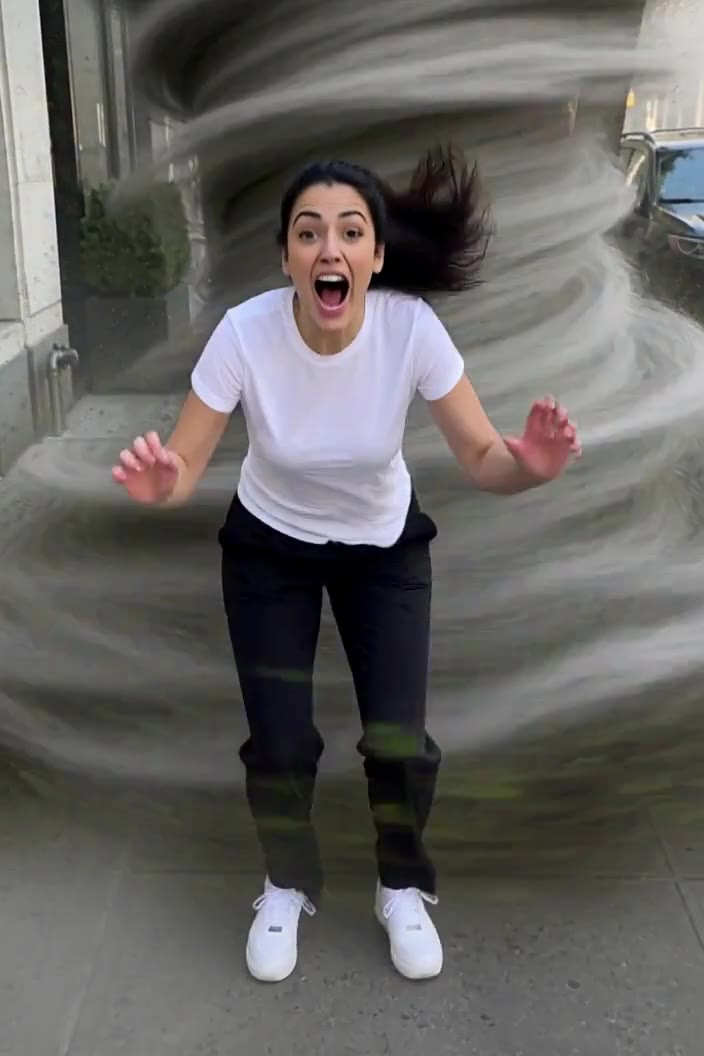
The preset creates a silent, 5-second, 720p clip for 284 credits. It keeps the aspect ratio of your source photo. Check the displayed quote before you generate; five seconds is the output length, not the processing time.
Step 1: Choose a photo with visible ground and sky
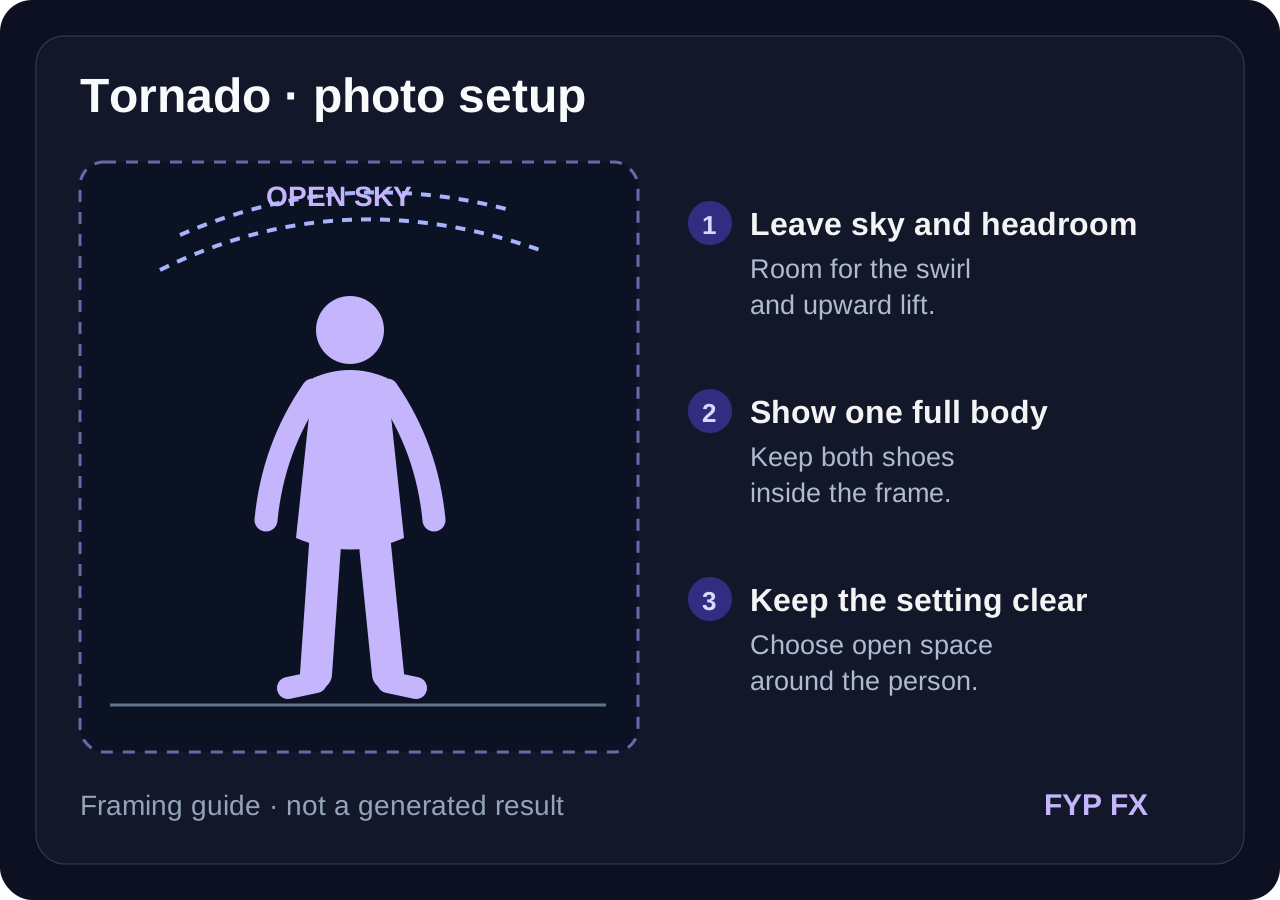
Use one JPG or PNG, up to 20 MB, showing one person from head to shoes. A sharp face, visible sky and open space beside the arms give the model a clearer starting point. Use a photo you have permission to use.
Decide on the crop before uploading:
- Keep both shoes and the ground. They make the moment of leaving the ground easier to read.
- Keep space above the head. The person rises before exiting at the top; a tight crop can hide that movement.
- Keep the face large enough to recognize. A very distant person can lose facial detail even when the scene has plenty of sky.
A seated portrait, crowded group photo or indoor close-up does not match this preset as well as an open outdoor shot. The preview shows your starting image, rather than a crop editor for the finished video.
Step 2: Upload and start one generation
Open AI Tornado, sign in and upload the photo. Wait for the upload to finish, check that the preview includes the body and overhead space, and confirm your balance covers 284 credits. Select Generate once.
There is no prompt box or tornado-strength slider: the wind, reaction and lift are already set. Processing can take several minutes. If progress stops updating, open My videos and check the task and your balance before submitting again.
Step 3: Check each beat of the storm
The preset asks for the funnel to build behind the person first. It then adds wind, raised arms and an upward lift with a small quarter-turn, keeping the face visible before the person exits at the top. It requests light leaves and dust while the location stays intact. AI can miss or change those details.
Watch the full clip, then replay the lift:
| Check | If the result misses it |
|---|---|
| The face is recognizable before the upward exit | Try a sharper face with space around the head; a funnel can still overlap it. |
| Hands and arms look natural | Use a simple standing pose with arms separated from the body. |
| The person visibly leaves the ground | Use an uncropped full-body source with both shoes and open sky. |
| Buildings and trees remain intact | Do not keep a result with unwanted warping; a simpler background may help another attempt. |
The edit is an imagined movie gag. If you choose to regenerate, each new generation uses credits; a different photo can help but does not guarantee a corrected result.
Step 4: Download and add the wind sound
Use Download video in the studio, or open the completed clip in My videos. The output is silent. In TikTok or your editor, add wind or a whoosh that peaks at the upward exit.
For a calm setup, place a short still of the original photo before the generated clip in your editor. That still is an extra editing step, rather than a setting in the generator. Keep captions clear of the face and identify the clip as AI-generated when sharing.
FAQ
Can I use a photo of two people?
The preset is designed for one person. Make separate clips and combine them in an editor if you want a group sequence; each generation has its own credit cost.
Can I make a destructive tornado?
There is no editable prompt. This preset requests a soft, stylized funnel without damage or injuries.
What if generation status or credits are unclear?
Check My videos and your balance first. Contact support if the status remains unclear instead of starting repeated attempts.
Choose an open, full-body photo and create an AI Tornado video. For a different kind of motion, see the AI Backflip guide or AI Storm II.