Show an adult with face, torso and hands visible
Create a table-side party scene from one adult photo, with a short pour, a bottle set-down and a small toast. Use the Party Pour tool to create the clip, or read the effect introduction for the intended sequence.
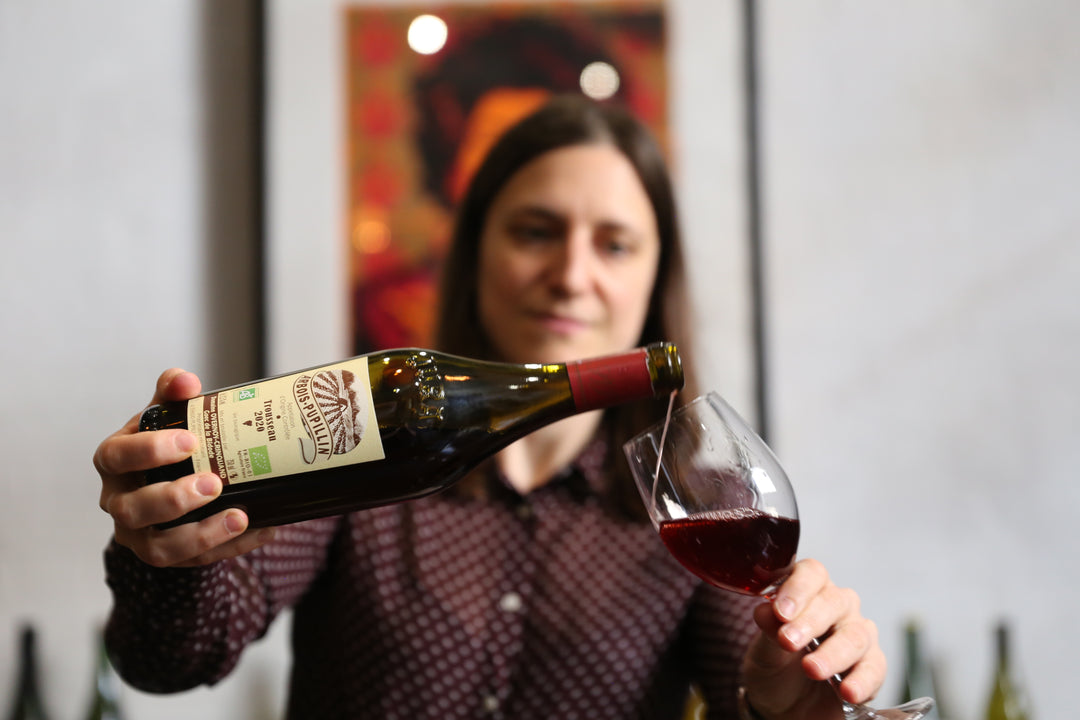
The preset creates a silent, 5-second, 720p video for 284 credits. The scene uses a vertical 9:16 frame, regardless of the source photo’s orientation. Check the displayed quote before generating; five seconds is the finished clip length, rather than the processing time.
Step 1: Choose the reference for this sequence
Your photo is an identity reference for a newly generated scene. It does not set the opening video frame, source background or final crop.
The preset builds a new waist-up table-side scene. Use one clearly adult person with both hands visible; the bottle, glass, table and pouring pose are generated rather than copied from the source.
- Use one adult with a sharp face and visible upper torso.
- Show both hands without a phone or another large object in the way.
- Prefer a simple reference without another person overlapping the arms.
Use a clearly adult reference with both hands readable. You do not need to hold a bottle or glass for the upload: the new table-side scene starts with those props already in hand. A phone in front of the body can interfere with the hand reference. Use a photo you have permission to use.
Step 2: Upload and start one generation
Open Party Pour, sign in and upload one JPG or PNG up to 20 MB. Wait for the upload to finish and check the preview against the photo guidance above. Confirm your balance covers 284 credits, then select Generate once.
There is no bottle-brand, liquid, glass, drinking-action or pour-duration selector. Processing can take several minutes. If progress stops updating, check My videos and your balance before submitting again. Contact support if the status remains unclear.
Step 3: Review the full action and ending
The person begins with bottle and glass already in hand, then pours a short stream. The bottle returns upright so the stream stops, then moves onto the table. The freed hand stays clear while the glass lifts for a small toast; drinking is not part of the sequence. These are the intended actions; generated timing, identity and object motion can differ.
Watch the full clip once at normal speed, then replay the contact points and ending:
| Check | What to review |
|---|---|
| Two grips | The bottle and glass each remain in one coherent hand without extra fingers or overlapping handles. |
| Short pour | One stream enters the glass rather than splitting, missing it or passing through it. |
| Stop and set-down | The bottle returns upright to stop the stream before it is placed on the table. |
| Small toast | The glass lifts slightly after the bottle is down; a drinking action is not requested. |
If the props merge with the hands, choose a reference with clearer separated hands and upper torso. If the stream keeps flowing during set-down, do not assume another attempt will preserve the same object timing. Each new generation uses credits, and a different source does not guarantee a corrected result.
Step 4: Download and finish the timing
Use Download video in the studio, or open the completed result in My videos. After downloading, add a short pouring sound followed by a light toast sound in your editor. Keep the glass and hands clear of captions.
Music, captions and trims are editing steps after downloading. If you share the result, identify it as AI-generated so viewers understand that the scene or movement is newly created.
FAQ
Do I need bottle and glass props in the photo?
No. The preset generates the table-side pose and props. A clear adult face and both hands are more useful reference detail.
Does the person drink from the glass?
The preset requests a short pour and a small toast, without a drinking action.
Can I choose the bottle or liquid?
No. There is no brand, liquid, glass or pour-duration selector. The props and liquid appearance are generated.
Choose a suitable photo and create a Party Pour video. The effect introduction has a quick summary of the photo requirements and limitations.