Give the side-step groove room to move
The AI Charme Dance tool animates one standing photo with a short baile-charme-inspired groove: relaxed knees, right-and-left side steps and low arm swings. It is a fixed movement preset, rather than a reproduction of a particular party video, performer or song. The effect introduction summarizes the intended sequence.
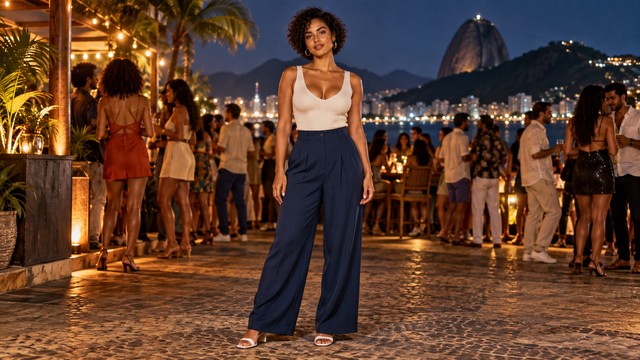
The output is a silent, 5-second, 720p video for 284 credits. Its aspect ratio follows your source photo. Check the displayed quote before generating; five seconds is the finished clip length, not the processing time.
Step 1: Choose a standing photo with floor at both sides
Use one JPG or PNG, up to 20 MB, showing one person from head to shoes. Use an image you have permission to use.
- Keep both shoes and their contact with the floor visible.
- Leave a little free floor to the right and left for the side steps.
- Keep the arms visible and separated from the torso so the low swing can read.
- Choose a sharp face in even light, rather than a heavy beauty filter or blurred screenshot.
A calm standing pose fits the preset better than a seated, running or already-jumping photo. A close portrait cannot show the step-and-gather footwork.
Step 2: Upload and run the fixed preset
Open AI Charme Dance, sign in and upload the photo. Wait for the upload to finish, check the preview includes both shoes and side space, and confirm your balance covers 284 credits. Select Generate once.
There is no editable prompt, dance-speed control or song selector. Processing can take several minutes. If progress stops updating, check My videos and your balance before submitting again.
Step 3: Review the groove from the feet upward
The preset asks for a soft knee-and-shoulder bounce, one small step right with the feet gathering, then a step left with low arm swings. A small forward-and-back rock leads into a smiling hold. The hands are intended to stay low, rather than frame the cheeks.
Watch the whole clip, then replay the steps:
| Check | What matters |
|---|---|
| Side steps | The body shifts with the supporting foot instead of sliding across the floor. |
| Knees and shoes | Both legs bend naturally, with readable ground contact. |
| Low arm swings | Arms remain attached and move beside the body without extra hands. |
| Final rock and smile | The person finishes balanced and still resembles the source. |
If the steps leave the frame, choose a wider source with more side space. If the feet slide, a simple visible floor may help another attempt. Each new generation uses credits, and changing the photo does not guarantee a corrected result.
Step 4: Download and align your audio
Select Download video in the studio, or open the completed result in My videos. The generation is silent and does not match a song automatically. Add audio in your editor and align the rhythm to the side steps.
You can prepend a brief still of the source photo for a before-and-after setup. That pause is an editing step after downloading. Keep captions clear of the feet and identify the clip as AI-generated if you share it.
FAQ
Does this recreate an exact Charme routine?
No. It uses a short groove inspired by the style, without copying a specific performance.
Can I choose cheek-framing hand gestures instead?
No. This preset uses low arm swings and side steps; there is no move selector.
Is music included?
No. Add and time your chosen track in an editor.
Choose a full-body photo with room at both sides and create an AI Charme Dance video. For a different footwork sequence, see AI Plug Walk.