Quick answer
For a broom flying video, start with the person’s body as well as their face. The AI Broom Riding tool creates the wooden broom, riding posture and moonlit flight from a full-body or roomy half-body photo. Check how the hands, knees and broom move together during the takeoff before keeping the clip.
Choose the rider reference: Keep the arms and torso visible without a large object crossing them. A real broom or witch costume is optional; a face-only selfie leaves most of the riding pose to be generated.
Plan the composition: The flight follows the source photo’s aspect ratio, while the setting changes to moonlit rooftops. Prepare a vertical source if that is the composition you need, leaving room around the rider rather than planning a tight crop afterward.
Explore the broom riding effect introduction for the flight concept. The guide below focuses on body references, the lift and checking contact between the person and broom.
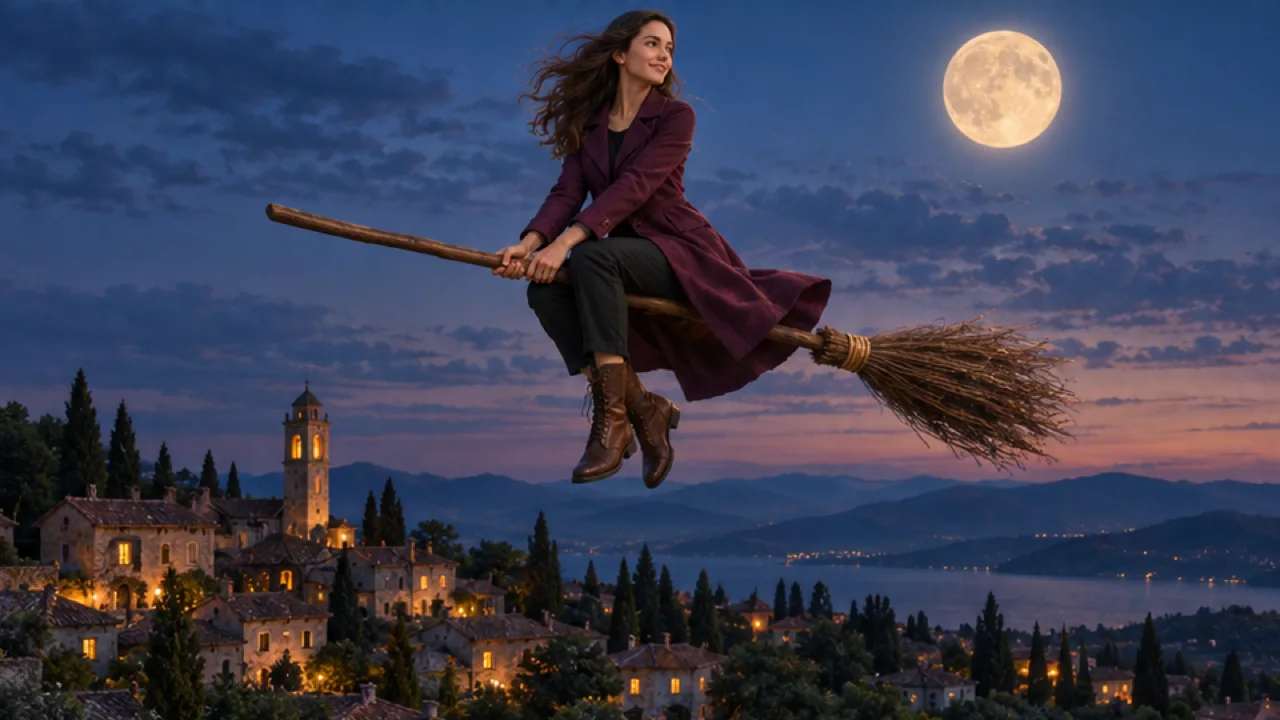
Categories: AI Creation Studio, Halloween, Photo to Video
Tags: AI broom riding, Halloween AI video, photo to video, FYP FX effects
A witch-broom photo animation tells a short Halloween flight story: someone hops onto a classic witch broom, lifts off, and soars through a moonlit sky over quiet rooftops. You do not need a costume set, a green screen, or a drone shoot. You need one clear photo and a tool that already knows the scene.
On FYP FX, use AI Broom Riding. The current effect settings, as of October 16, 2026, are:
| Setting | Current value |
|---|---|
| Input | One JPG or PNG, up to 20 MB |
| Output | 5-second video, 720p; aspect ratio follows your photo |
| Audio | Silent; no generated music, voices, or sound effects |
| Cost | 568 credits per generation |
Check the effect page for the latest settings and credit cost before generating. This guide covers photo choice, generation, review, and downloading your clip.
What the effect creates
Your upload supplies the starting image. The fixed prompt asks the model to preserve the person's recognizable face, hairstyle, and outfit while creating a wooden-broom takeoff and flight under a full moon. Facial details, clothing, pose, and background may change, so judge the whole clip rather than the opening frame alone.
The intended mood is a playful, family-friendly Halloween flight with subtle magical sparkles. The prompt excludes blood, gore, and wounds. These are scene instructions, so watch the full clip to check that the result fits your audience.
Step 1: Pick one clear full or half-body photo
Favor a sharp, well-lit photo of one person with the face fully visible. Full-body or half-body framing leaves room for the broom, kickoff, and flight pose. A front-facing or three-quarter view keeps more of the face visible than an extreme side profile.
Skip group shots, tight face-only crops, sunglasses that hide the eyes, heavy beauty filters, and faces half-hidden by hair or objects. You do not need a witch costume photo. Everyday clothes work; the broom and night sky are generated.
Only use a photo you have permission to use, and make sure the person is fine appearing in a fictional Halloween flight scene.
Step 2: Upload and preview
Open AI Broom Riding.
- Upload one JPG or PNG (up to 20 MB).
- Check the preview so the right person and framing are selected.
- Keep the photo you want to animate in the preview. This page uses a fixed scene prompt; there is no custom prompt to fill in.
If the preview looks wrong, replace the file before you spend credits.
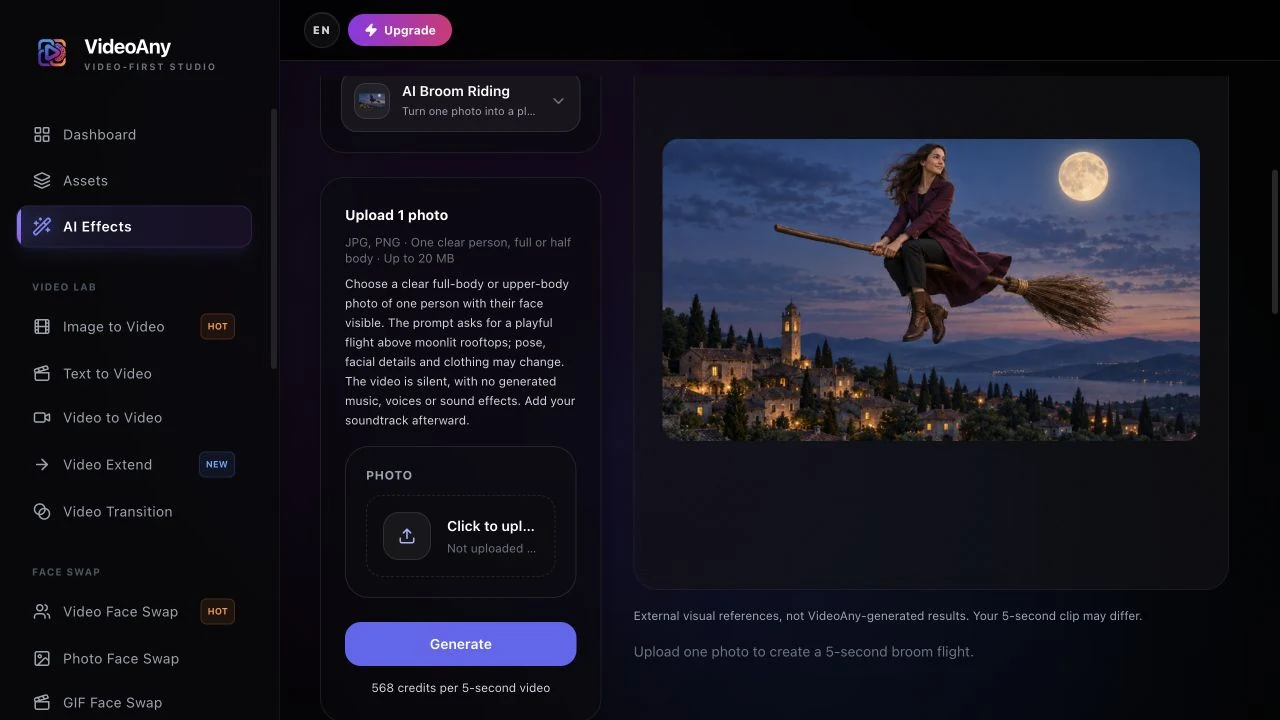
Step 3: Check credits, then generate one test
Sign in and check the displayed cost and your balance. Confirm the amount on the effect page before submitting; each new take uses credits.
Select Generate once and allow several minutes for processing. Five seconds is the video length, not the generation time. Keep the page open while it processes. If progress cannot be confirmed, check your generation history before starting another task.
Start with one take. Keep it for comparison if you later try a different source photo; each new generation uses credits.
Step 4: Review face, broom, and flight
Watch the whole clip once, then scrub the takeoff and the mid-air beat.
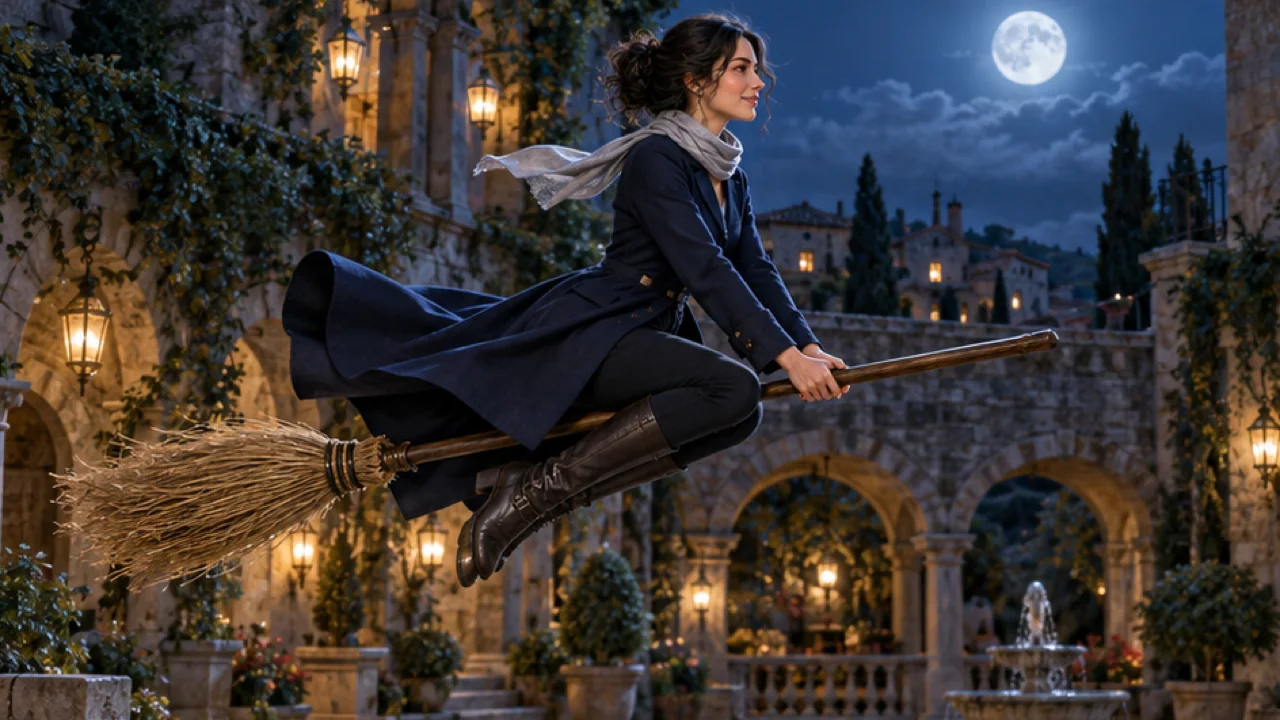
Check for:
- Face drift or a face that no longer matches the photo
- Hands or legs fused into the broom handle
- Cropping that cuts off the head or feet during flight
- A scary or gory look instead of a lighthearted flight
If the face drifts, replace the photo with a sharper, better-lit portrait and keep everything else the same. Keep the take where the person stays recognizable through the flight, not only the prettiest opening frame.
When you are happy with the result, select Download video. Save the file before preparing captions or adding audio in your editor or publishing app.
Keep the takeoff in your TikTok broom flying edit
Let viewers see the lift before cutting into the flight. The connection between rider and broom is the main action, so a close crop of the face can weaken the fantasy even when the face itself looks good. Place a short caption in the open sky rather than over the hands or broom handle.
For a vertical TikTok post, preview the complete edit before saving. Check the front of the broom, the rider’s knees and head at both the takeoff and airborne moments. Add music or a wind cue afterward using audio you can share, and identify the flight as AI-generated fantasy.
Troubleshooting before another generation
- The task is still running or the page reports a progress error: check your generation history before trying again. A missing preview does not prove that the submission failed.
- The credit status is unclear: check the task and your balance, then contact support if the status remains uncertain. Do not submit repeated jobs while resolving it.
- The face changes or the broom pose looks tangled: try a sharper full-body or half-body photo with visible limbs and space around the subject. Check the new take throughout; a different photo may help, but cannot guarantee a clean result.
- The flight is cropped too tightly: use a wider original photo. The output follows the source aspect ratio, and this effect has no separate sky, costume, or framing controls.
FAQ
How many photos do I need?
One. The effect is image-to-video from a single portrait.
Do I need to sit on a broom in the photo?
No. The preset creates that pose. Show the arms and torso clearly, since the generated hands and knees need to form a plausible riding position.
Why are the legs tangled around the handle?
The new pose can distort anatomy, especially when the source hides most of the body. Review the takeoff frame by frame and consider a clearer full-body or half-body reference on a later attempt.
Is it free?
The current setting as of October 16, 2026 is 568 credits per generation. Check the effect page and your balance before you start.
Is it scary?
The effect aims for a playful, family-friendly flight with warm moonlight. Results can still vary, so review before posting.
Can I choose the sky or costume?
This page uses a fixed moonlit-flight prompt. It asks the model to preserve your face and outfit, but clothing, facial details, and the scene can vary.
Make your clip
Choose one clear full-body or half-body photo, open AI Broom Riding, check the current cost, and generate one take. Review the full flight before downloading and adding your soundtrack.
For another one-photo Halloween idea, read the AI ghost prank video guide. For a two-person scene, follow the AI zombie love story guide. You can also explore AI Pumpkin Head.