Use a whole-vehicle reference for the new street scene
The Flying Car generator uses one exterior photo to guide a vehicle’s appearance in a new vertical street scene. The reference is not the opening frame: its background, camera angle and crop are not retained. Blue jets ignite under the grounded vehicle, then it makes a short lift and gentle turn before holding a hover while distant onlookers raise phones.
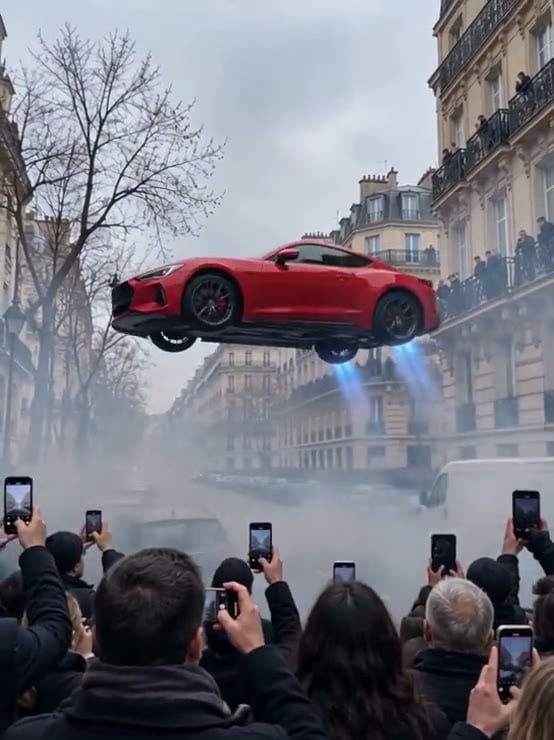
A generation produces a silent, 5-second, 720p vertical 9:16 clip for 284 credits. Five seconds describes the finished clip, not processing time. Check the displayed quote before submitting.
Step 1: Show one complete vehicle
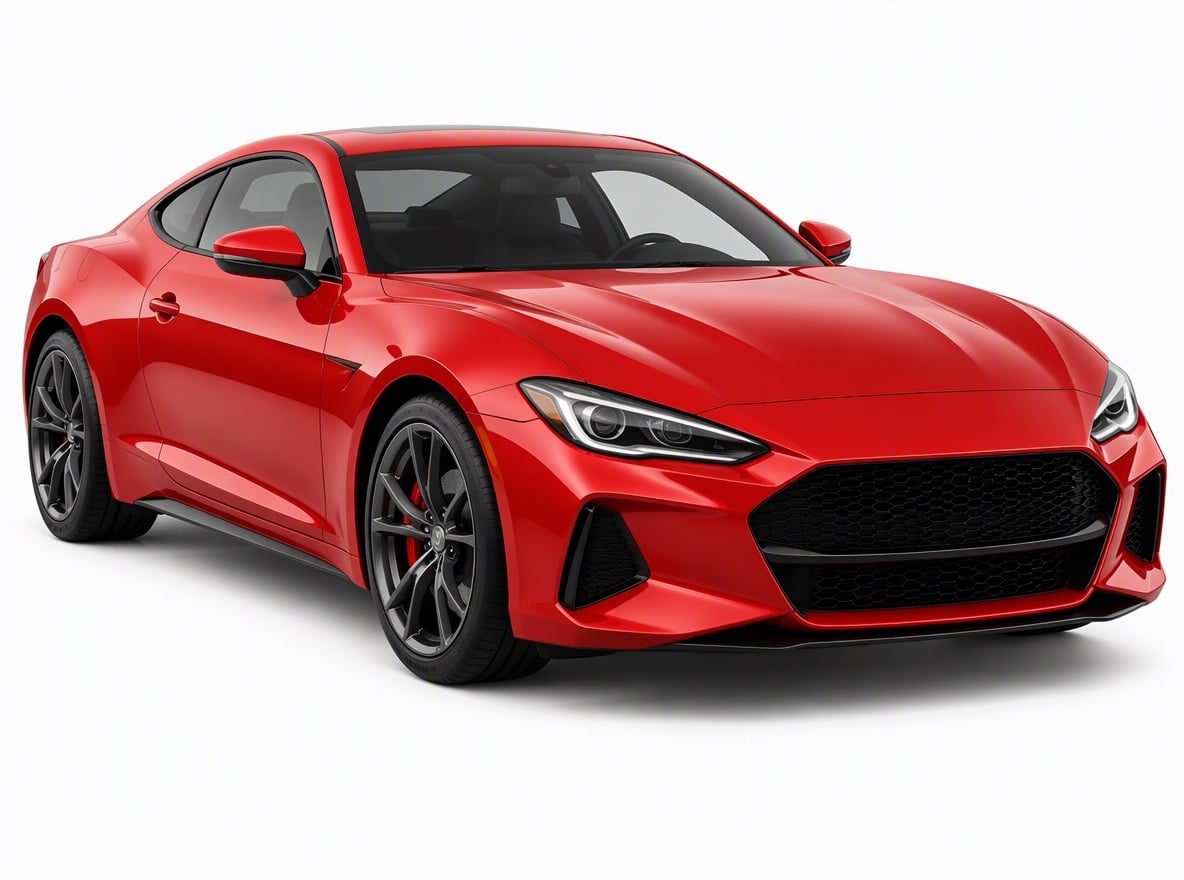
Use one JPG or PNG up to 20 MB that you have permission to use. Choose a sharp exterior photo of a car, truck, van or similar vehicle:
- Include the complete body and wheels, with readable paint colour and exterior shape.
- A clear front or three-quarter exterior view can show more of the wheel and body geometry than a tight detail crop.
- Avoid heavy glare, large obstructions and other vehicles overlapping the subject.
- A driveway, street or product-style photo is suitable. It does not need to show jets, a city crowd or an airborne vehicle.
An interior-only crop or person selfie does not provide the vehicle exterior this preset needs. The model recreates the vehicle in a new scene, so exact proportions, fine trim and small lettering can change.
Step 2: Check the reference and generate once
Open Flying Car, sign in and upload the photo. Wait for the upload to finish, then confirm the preview shows one complete vehicle. Check that your balance covers the 284-credit quote and select Generate once.
There is no city selector, flight-path control or editable prompt. The new street scene, blue thrusters, short lift, gentle turn and hover are fixed instructions. Unlike the in-cabin Tesla Roadster scene, this preset keeps the vehicle exterior as its subject.
Processing can take several minutes. If progress stops updating, check My videos and your balance before submitting again. Contact support if the status remains unclear. A new generation, including a retry for a different result, is another paid attempt at the displayed price.
Step 3: Review ignition, wheel continuity and the hover
The intervals below describe the preset instructions, not a verified generated result or a promise of exact timing. Watch the full clip and replay the transition from ground contact to lift.
| Intended interval | Requested action | What to check |
|---|---|---|
| Opening | Show the referenced vehicle grounded in a new street scene. | The body shape and paint colour remain recognizable, with the whole vehicle inside the vertical frame. |
| 0–2 seconds | Ignite blue jets beneath the chassis with light low smoke. | The wheels remain attached and the body upright. Smoke does not hide the vehicle or the space below it. |
| 2–4 seconds | Lift a short distance and make one gentle mid-air turn. | Ground clearance becomes readable, the vehicle stays intact, and the body does not rotate out of frame. |
| 4–5 seconds | Hold a hover as distant onlookers raise phones. | The hover is stable; the onlookers remain secondary rather than merging with the body or dominating the shot. |
AI can change body details, wheel count or attachment, jet shape and background people. If the vehicle becomes hard to recognize, try a clearer exterior reference with less glare and overlap. Review plates and lettering before publishing, and blur or crop unwanted details in your editor when needed; the generator does not guarantee their removal. Budget another 284 credits at the current quote if you choose to generate a new version.
Step 4: Download and add sound after reviewing the lift
Use Download video for the completed clip. The export is silent and contains no engine or jet sound. Add audio you have permission to use and align it with the actual ignition or lift, rather than assuming a fixed beat.
Keep captions and stickers clear of the chassis, wheels and jets. Inspect the opening and final frame before looping: a grounded start and airborne ending will not automatically join seamlessly. Identify the scene as AI-generated when sharing it.
FAQ
Does the photo become the first frame?
No. It guides the vehicle’s appearance in a new vertical 9:16 street scene. The source background and viewpoint are not retained.
Can I choose another city or a longer flight?
No. The fixed sequence is blue thruster ignition, a short lift with a gentle turn, then a hover. There is no route or city selector.
Does it include sound?
No. Download the silent clip and add audio in your editor.
What does one attempt cost?
A silent 5-second, 720p vertical generation costs 284 credits at the current quote. A new generation is another paid attempt. Check My videos and your balance if an earlier submission is still unclear.
Can I use a person selfie?
Use a complete vehicle exterior reference. A person photo or cabin close-up does not show the body and wheels needed for this scene.
Make your clip
Prepare one suitable exterior reference and open Flying Car. For the definition, photo requirements and limitations, see the Flying Car explanation.