Frame the head and torso for one costume reveal
The AI Halloween Costume Transformation tool turns one photo into a single combined Halloween outfit: a grey ghost-like robe, pumpkin-orange trim and a plain witch hat. It is one continuous transformation, rather than a slideshow of three costumes. The effect introduction summarizes the intended look.
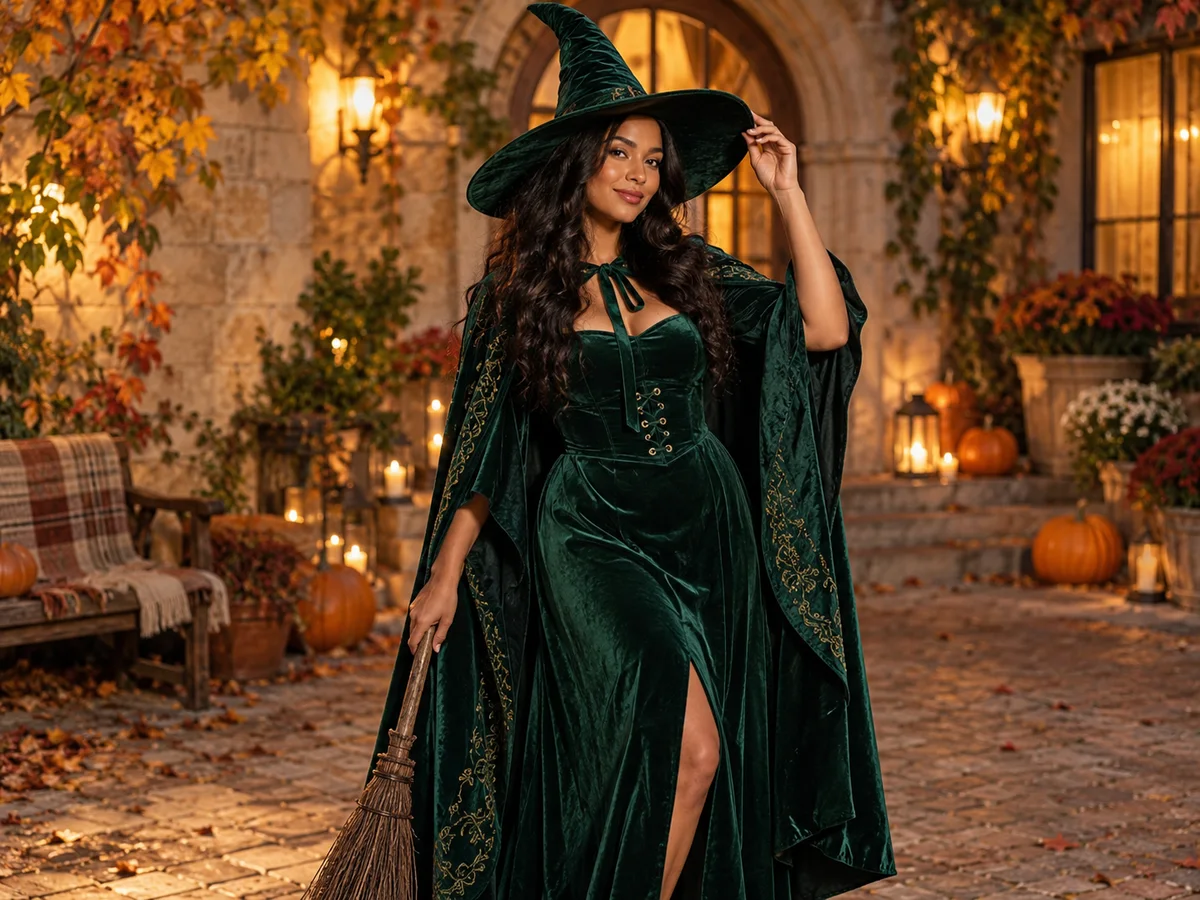
The output is a silent, 5-second, 720p video for 284 credits. Its aspect ratio follows your photo. Check the displayed quote before generating.
Step 1: Give the hat and robe visible space
Use one JPG or PNG, up to 20 MB, showing one person with a sharp face and visible upper torso. Use an image you have permission to use.
- Leave space above the head for the witch hat.
- Include both shoulders and some torso for the robe and trim.
- Keep the face unobstructed by a mask, hand or heavy hair.
- Choose even lighting so the facial outline is easy to compare before and after.
A tight face-only crop leaves little room for costume pieces. A full-body photo can be used, but the face should still have enough detail to recognize. The preset changes the outfit; it does not act as a precise clothing try-on.
Step 2: Upload and run the fixed look
Open AI Halloween Costume Transformation, sign in and upload the photo. Wait for the upload to finish and check the headroom and torso in the preview. Confirm your balance covers 284 credits, then select Generate once.
There is no costume catalog, character selector, colour control or editable prompt. Processing can take several minutes. If progress stops updating, check My videos and your balance before starting again.
Step 3: Review the outfit forming around the person
The preset begins from your original photo, asks for the robe, orange trim and hat to form in one transition, then adds a slight shoulder turn and smile before a hold. It requests a visible face throughout, but fabric, accessories and facial features can drift.
| Check | What to review |
|---|---|
| Hat placement | It sits above the head rather than covering or merging with the eyes. |
| Robe and trim | Fabric forms around the torso with a coherent collar and outline. |
| Face through the change | Facial structure remains recognizable rather than changing into another person. |
| Ending turn | Shoulders, neck and any visible hands remain attached and natural. |
If the hat is cropped, choose more headroom. If the robe has no room to form, use a wider torso view. Each new generation uses credits, and a better source does not guarantee the same costume details or facial resemblance.
Step 4: Download and finish the reveal
Use Download video in the studio, or open the completed result in My videos. The clip is silent. Add a whoosh or short seasonal sound in your editor when the costume appears.
For a longer before-and-after setup, prepend a brief still of the original photo in your editor. Keep captions clear of the face and hat, and identify the edit as AI-generated if sharing.
FAQ
Can I choose a different costume or named character?
No. This preset requests one combined robe-and-hat look without a costume selector.
Does it cycle through three outfits?
No. The robe, orange trim and hat are parts of one costume.
How is it different from Halloween Makeup?
This effect changes the upper-body outfit and accessories. Halloween Makeup focuses on decorative patterns on the face.
Choose a clear head-and-torso photo and create a Halloween costume transformation. For a face-focused reveal, read the AI Halloween Makeup guide.