Keep the eyes and face outline easy to read
The AI Halloween Makeup tool animates decorative silver glitter-like lines and purple-orange contours onto one portrait. The lines are intended as cosmetic face paint over intact skin. This is a generated video look, rather than a tutorial for applying real makeup or a cosmetic-product try-on. The effect introduction explains the sequence.
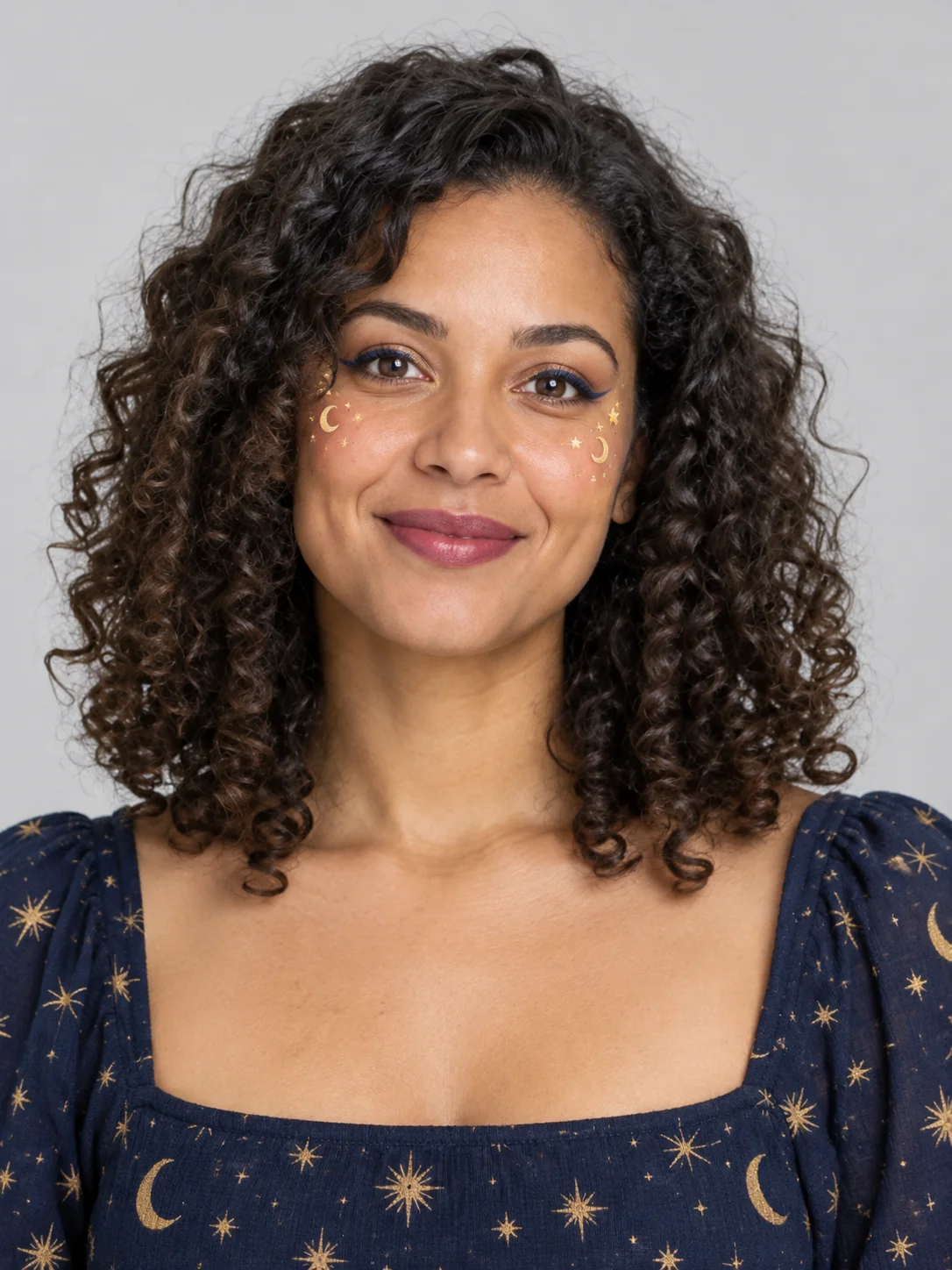
The preset creates a silent, 5-second, 720p video for 284 credits. Its aspect ratio follows your photo. Check the displayed quote before generating.
Step 1: Choose an evenly lit portrait
Use one JPG or PNG, up to 20 MB, with one clear face. Use a photo you have permission to use.
- Keep both eyes, eyebrows and the mouth visible.
- Leave the hairline and face outline inside the crop.
- Avoid sunglasses, a hand over the face, strong shadows and heavy blur.
- Little existing makeup gives an easier before-and-after comparison; a heavy design can blend with the generated pattern.
A face-focused portrait fits better than a distant full-body photo. The effect needs facial detail more than space for a large body movement.
Step 2: Upload and generate once
Open AI Halloween Makeup, sign in and upload the portrait. When the upload finishes, inspect the eyes and mouth in the preview. Confirm your balance covers 284 credits, then select Generate once.
The palette and style are preset. There is no colour picker, pattern menu, intensity slider or editable prompt. Processing can take several minutes. If progress is unclear, check My videos and your balance before generating again.
Step 3: Check the paint and the face separately
The preset starts from the source portrait, asks for silver glitter-like lines and purple-orange contours to develop, then adds a small smile before the ending hold. It does not request a brush or a hand applying the makeup. Pattern placement and facial details can still change.
| Check | What matters |
|---|---|
| Eyes and mouth | Both eyes and the mouth remain readable as the design forms. |
| Decorative lines | They follow the surface as face paint, rather than opening or distorting the skin. |
| Face outline | The jaw, nose and hairline still resemble the source. |
| Ending smile | The expression changes naturally without shifting teeth or extra facial features. |
If the design overwhelms the eyes, try a sharper portrait with more even light and less existing makeup. If the face changes, compare the source and ending side by side before keeping the result. A new generation uses credits and can still vary.
Step 4: Download and add the reveal sound
Select Download video in the studio, or open the completed result in My videos. The output is silent. Add a short sound at the point the colour becomes visible in your editor.
To extend the natural-face opening, prepend a brief still of the original portrait. Keep captions away from the eyes and identify the clip as AI-generated when sharing.
FAQ
Can I select another palette?
No. The preset requests silver glitter-like lines and purple-orange accents, though AI may render the colours and patterns differently.
Does it tell me which makeup products to use?
No. It creates a video effect without product recommendations or real-world application steps.
Does it change the costume too?
The preset focuses on the face. Use Costume Transformation for a robe-and-hat reveal.
Choose a clear portrait and create an AI Halloween Makeup video. For an outfit change, see AI Halloween Costume Transformation.