Start with two clear photo references
An AI hug in heaven video is an imagined remembrance scene of two people sharing a gentle hug in soft golden light. You can use the AI Hug in Heaven tool for yourself and someone you miss. It generates a new scene from photos; it does not recover a real recording or reproduce a memory. The effect introduction explains the two photo roles.
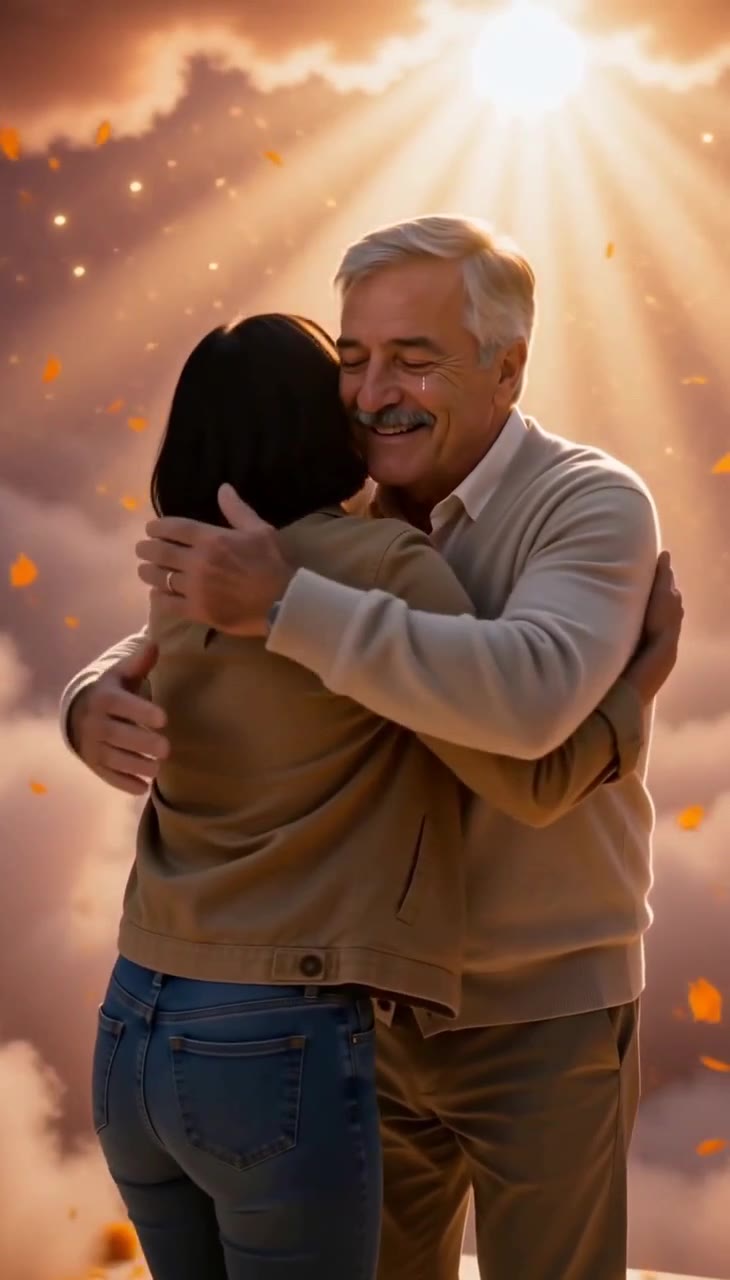
The preset creates a silent, 5-second, 720p vertical 9:16 clip for 284 credits. The scene is vertical even if the source photos are landscape. Check the quote in the studio before generating.
Step 1: Prepare one person in each photo
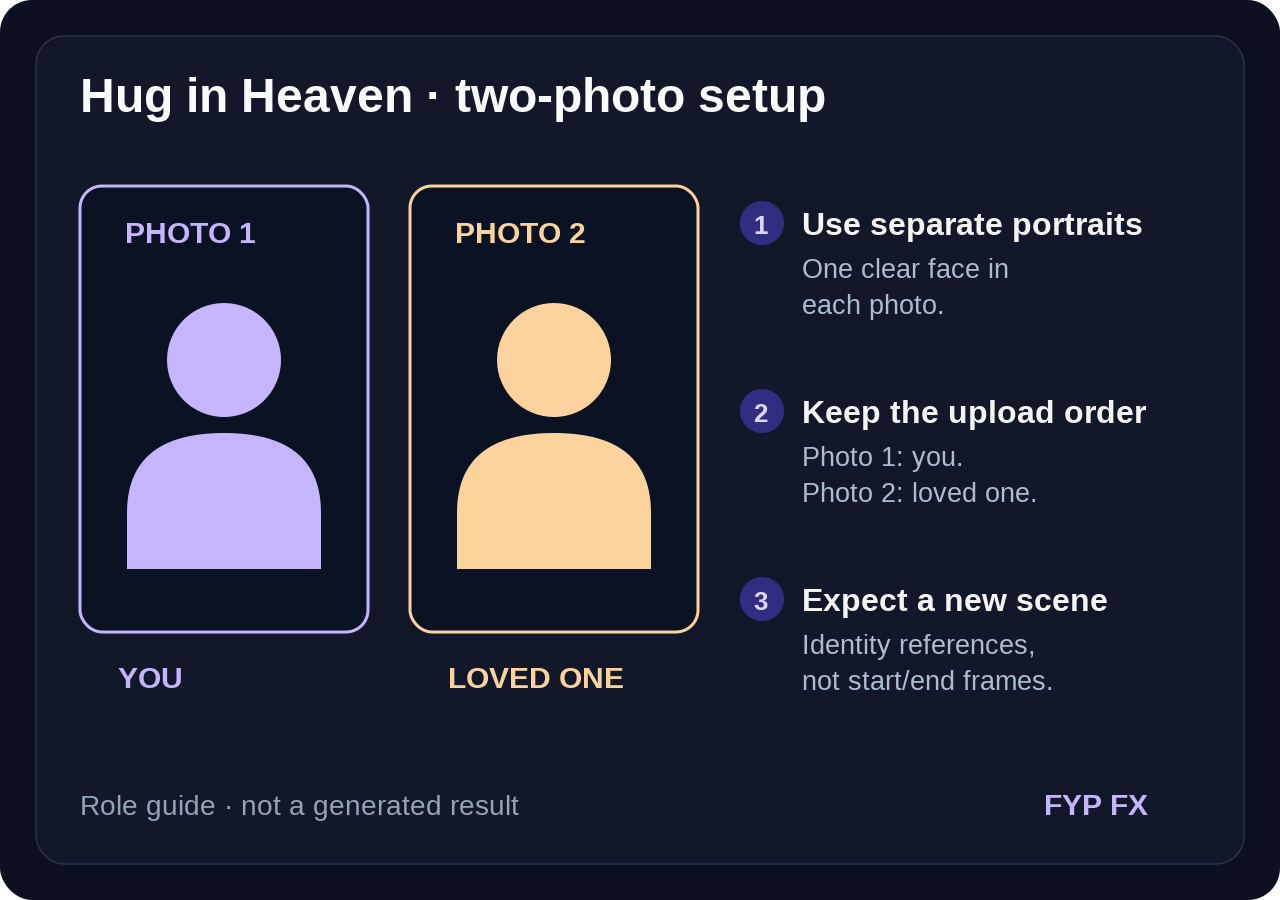


Use two JPG or PNG files, up to 20 MB each:
- Photo 1 defines you, or the first person in the scene. Choose a clear face with some shoulders visible.
- Photo 2 defines the loved one. Use the sharpest image available, preferably facing toward the camera.
These are identity references, rather than first and last video frames. Their original backgrounds and poses are not carried into the scene. The preset asks to retain recognizable faces and reference outfits, but AI can change clothing and facial details.
For an old print, scan it or photograph it flat in even light without glare. Avoid filters that redraw the face. A black-and-white reference can be used; the preset asks for natural colour, so any restored colour is an AI interpretation. If both people are in one group photo, make two separate crops, each retaining a clear face and some shoulders while excluding the other face. Cropping cannot restore detail that was missing in the original.
Use photos you have permission to use. If you plan to share the result, consider how people close to the person may feel about seeing an imagined scene.
Step 2: Upload in the correct order
Open AI Hug in Heaven and sign in. Put the first person's image in Photo 1 and the loved one's image in Photo 2. Wait for both uploads to finish, compare the previews with the slot labels, and confirm your balance covers 284 credits. Select Generate once.
The golden setting and hug are preset; there is no editable prompt, background selector or music option. Processing can take several minutes. If progress is unclear, check My videos and your balance before submitting again.
Step 3: Review the two identities and embrace
The preset begins with the two people close enough to reach each other. They lean in, share a gentle hug, then ease apart slightly so both faces can be seen again. Warm light, pale clouds and a few orange marigold petals form the setting. The preset excludes wings, halos and religious figures; generated details may still vary.
Watch the result privately first if that feels right for you. Compare it with both reference photos:
| Check | What to review |
|---|---|
| Two separate identities | Each face should resemble the correct photo, with no blended or swapped features. |
| Beginning and ending | Both faces should be visible enough to assess, rather than hidden throughout the hug. |
| The embrace | Look for natural arms, hands and shoulders, with no merging bodies or extra person. |
| Generated details | Check apparent age, hair, clothing and colour against the references. |
A sharper, more front-facing reference may help a new attempt, but AI can still change details. Each new generation uses credits. You can decide to keep the result privately or leave it unused.
Step 4: Download and decide whether to share
Use Download video in the studio, or open the completed clip in My videos. The output has no music or text. You can add a song and a short message in your editor, keeping captions away from the faces.
For a family tribute or an anniversary, consider previewing the edit with close family before showing it more widely. Identify the scene as AI-generated so viewers understand what they are seeing.
FAQ
Can I use an old or black-and-white photo?
Yes, if the face has enough detail. The scene's colour and any missing details are generated rather than recovered from the original.
Can I upload the same group photo twice?
Make a separate crop for each person first. Each slot should have one clear face so the references remain distinct.
Does the video reproduce a real memory?
No. The setting, movement and embrace are newly generated from the two references.
When you are ready, choose the two photos and create an AI Hug in Heaven video. The effect introduction has a quick summary of photo requirements and limitations.