Quick answer
The AI deep sea effect is a calm underwater portrait, not a swimming sequence. In the AI Deep Sea tool, your land photo becomes blue water while the person makes a small shoulder turn and hair or fabric drifts around them. Keep the face as the focal point, with bubbles and fish as background detail.
For the visual definition, see the deep sea effect introduction. The practical question for a TikTok deep sea AI edit is whether the person stays recognizable through the float, not how many ocean elements appear.
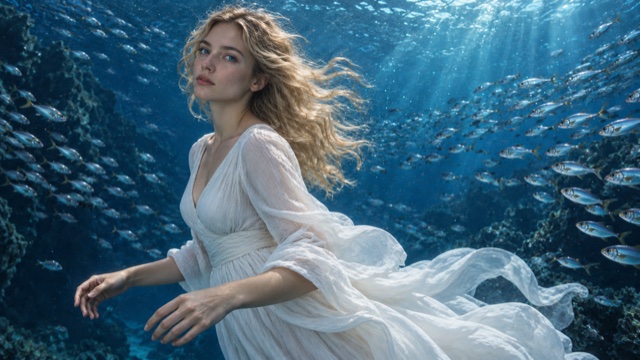
The AI deep sea effect turns an ordinary portrait into a surreal underwater moment: the person floats weightlessly in deep blue water, hair and clothes drift in the current, sunlight filters down from the surface, and a few fish glide past in the haze. You do not need a pool, a waterproof camera, or a diving trip. You need one clear photo and a tool that already knows the scene.
On FYP FX, use AI Deep Sea. The current preset creates a 5-second, 720p clip for 568 credits. Aspect ratio follows your photo, and the output is silent. Check the effect page for the current cost before generating. This guide covers photo choice, generation, review, and sharing.
What the effect creates
Your upload supplies the starting image. The scene direction asks the AI to preserve the person's recognizable face, hairstyle, and outfit as the setting gradually becomes calm, clear ocean water. Motion stays gentle: a small shoulder turn, drifting fabric, rising bubbles, and light rays from above. Facial details, clothing and backgrounds can change, so review the whole clip before choosing a take.
The mood is peaceful and dreamlike. The scene direction avoids sharks, danger, distress, nudity, and gore, and the person stays fully clothed. AI can still surprise you, so watch the full clip before you post.
Step 1: Pick one clear photo with room to float
Favor a sharp, well-lit photo of one person with the face fully visible. Leave some space around the head and shoulders so the water, light, and drifting hair have room. Soft daylight usually keeps facial features clearer than harsh shadows or colored party lighting.
Loose clothing and long hair make the underwater drift more visible, but they are not required. A plain T-shirt works too.
Skip group shots, tight face-only crops, sunglasses that hide the eyes, heavy beauty filters, and hands that are cut off at the edge of the frame. Only use a photo you have permission to use.
Step 2: Upload and preview
Open AI Deep Sea.
- Upload one JPG or PNG (up to 20 MB).
- Check the preview so the right person and framing are selected.
- The underwater scene and motion are preset, so you only need to choose the photo.
If the preview looks wrong, replace the file before you spend credits.
Step 3: Check credits, then generate one test
Sign in and confirm you have at least 568 credits. Each run produces one 5-second clip at 720p. Five seconds is the video length, not a promise of how long generation will take.
Select Generate once and allow several minutes for processing. Keep the page open, or check your generation history if the progress cannot be confirmed. If the task or credit status is unclear, review your history and balance before submitting again; contact support if it remains unresolved.
Start with a single output and keep it for comparison. Each new generation uses credits. Changing the photo and regenerating in one step makes it harder to see what fixed a bad take.
Step 4: Check the face through the shoulder turn
Watch the whole clip once, then replay the start and the end.
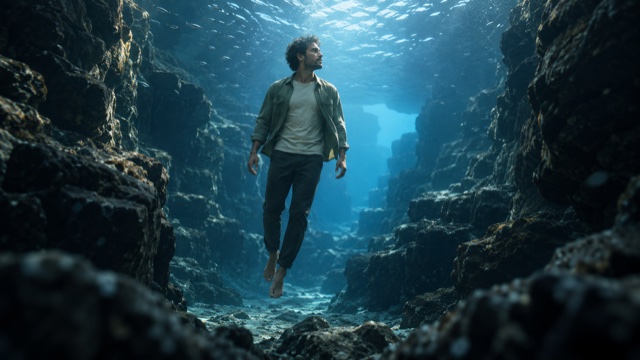
Check for:
- Face drift: eyes or mouth changing shape as the body turns
- Fingers or wrists that bend unnaturally in the current
- Hair or clothing that stretches or snaps instead of drifting
- Bubbles or nearby fish crossing the eyes instead of remaining supporting details
- Large swimming strokes, full rotations or distress that change the intended calm float
If the face drifts, replace the photo with a sharper, better-lit portrait and keep everything else the same. If the frame feels cramped, use a photo with more space around the body. Keep the take where the person stays recognizable through the whole float, not only the prettiest opening frame.
When you are happy with the result, select Download video and save the clip before preparing it for sharing.
Finish a TikTok deep sea AI edit without hiding the float
Download the take where the face remains clear, then view it at phone size. Leave a little time for the original image to become water; a large title covering the opening change can make the result feel like an ordinary blue portrait.
The clip is silent, so add a calm sound separately if needed. Keep captions away from drifting hair and the eyes, and identify the scene as AI-generated. A phrase such as “Somewhere deep blue” can support the mood without describing a dive that never happens.
For a loop, compare the opening land image with the underwater ending. They are different states, so the full transformation is not automatically seamless. Use the settled underwater portion or an intentional fade if those frames connect more cleanly.
FAQ
How many photos do I need?
One. The effect is image-to-video from a single portrait.
Do I need to film underwater?
No. The ocean, light, and bubbles are generated from a normal photo taken on land.
Do I need a prompt?
No. The effect page already includes the scene direction. You supply the photo.
Is it free?
Each generation costs 568 credits. Check your balance before you start.
Can I choose the water color or the fish?
Not on this page. The effect uses a calm deep-blue ocean scene and aims to keep your face and outfit recognizable.
Make your clip
Choose one clear portrait with room around the head and shoulders, open AI Deep Sea, spend 568 credits on one 5-second test, then keep the version where your face stays clear and the drift looks natural. For more photo-to-video effects on the same site, try AI Moonwalk Dance, Ceiling Fan Transition, and AI Broom Riding.