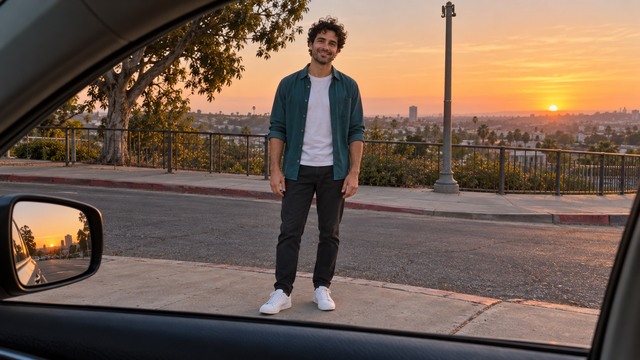
Start with a relaxed stance and visible shoes
The AI Plug Walk tool creates a short dance-only adaptation from one standing photo. The preset uses loose knees, compact alternating steps and low arm swings in the original setting. It does not rebuild a source video's car-window scene, add cash props or include its soundtrack. Read the effect introduction for the intended movement.
The preset creates a silent, 5-second, 720p video for 284 credits. The aspect ratio follows your photo. Check the quote in the studio before generating.
Step 1: Make the feet and weight shift easy to see
Choose one JPG or PNG, up to 20 MB, showing one standing person head to toe. Use a photo you have permission to use.
- Both shoes should be on a visible, simple surface.
- Leave room around the legs for the small forward-and-back steps.
- Keep the arms clear of the torso for the low swing.
- Choose a sharp face and an ordinary relaxed stance.
A seated photo, crossed legs or a crop at the knees hides the weight shift. The preset asks to retain the photo's outfit; you do not need runway clothes or a prop.
Step 2: Upload and generate once
Open AI Plug Walk, sign in and upload the image. When the upload finishes, check both shoes and the floor in the preview. Confirm your balance covers 284 credits, then select Generate once.
There is no editable prompt, route, step-speed or music control. Processing can take several minutes. If progress is unclear, check My videos and your balance before starting another attempt.
Step 3: Review the loose-knee groove
The preset asks for a small bent-knee weight shift, then compact alternating forward-and-back steps with low arm swings. It finishes with both feet planted. The intended movement stays mostly in place, rather than becoming a traveling runway walk.
| Check | What to look for |
|---|---|
| Starting groove | Knees soften while the person remains balanced over the feet. |
| Alternating steps | Shoes move separately with clear contact, rather than both feet sliding together. |
| Arms and outfit | Low arm swings remain natural and the outfit does not merge with the hands. |
| End pose | Both shoes settle on the floor and the face still resembles the source. |
If a foot disappears, try a wider crop with more visible ground. If the knees bend unnaturally, use a simpler standing pose. Generated steps and anatomy can still vary; a new generation uses credits.
Step 4: Download and add the rhythm
Use Download video in the studio, or open the finished clip in My videos. Add music in TikTok or your editor and align a beat with a clear foot plant. The silent generation does not synchronize to the original Plug Walk track or any other song.
For a before-and-after setup, prepend a brief still of the original photo in your editor. Keep captions above the shoes so the footwork remains visible, and identify the edit as AI-generated when sharing.
FAQ
Does it recreate the original video?
No. This is a short dance-only adaptation using your photo's setting.
Can I add a car or cash in the generator?
No. There is no prop or scene selector in this preset.
Can I use a group photo?
Choose one person. A group image can make the model animate or merge the wrong subject.
Pick a clear standing photo and create an AI Plug Walk video. For a side-step groove, see the AI Charme Dance guide.