Choose one clear visual idea
An AI video feels more like a filmed take when the camera movement, subject movement and scene stay understandable together. A sharp photo helps, but it cannot make every generated face, hand or background physically consistent. On FYP FX, the useful starting point is choosing an existing preset that matches the move you want.
There is no separate “look filmed” effect or general camera-control panel. Each tool uses a fixed sequence. These options serve different purposes:
| Preset | Intended result | Source photo to prepare |
|---|---|---|
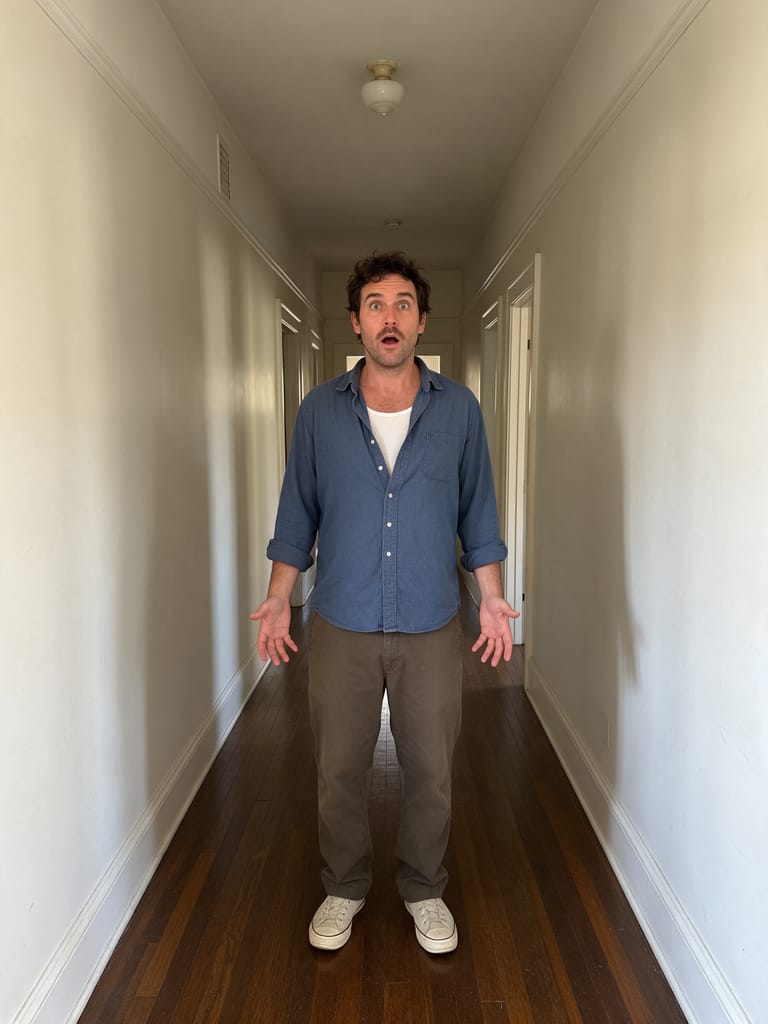
| AI Dolly Zoom | A person stays roughly the same size while background perspective changes. | One centered person with depth behind them, such as a receding street or layered room. |
| AI Earth Zoom Out | The person shrinks as the view pulls back to an imagined globe. | A clear opening face with some surroundings. |
| Ceiling Fan Transition | A fixed top-down scene uses fan-blade occlusions to reveal outfit changes. | A clear identity reference; the ceiling viewpoint and scene are generated. |
| AI Carpool Karaoke | A dashboard-style car scene with small head-and-shoulder movements. | A clear face or faces for the car occupants; the cabin scene is generated. |
For a subtle camera-style edit, start with Dolly Zoom. Earth Zoom Out and the fan transition are deliberately stylized, so their success depends on a readable effect rather than a claim that the scene was filmed in real life.
Step 1: Prepare the photo for the selected preset
For Dolly Zoom, keep the face sharp and show depth behind the subject. A blank wall leaves little perspective information; heavy portrait blur hides the background layers that make the move visible. A medium shot can be more useful than an extreme face crop.
For Earth Zoom Out, prioritize the opening person. The face is only intended to be readable near the start before shrinking out of view. Later landscapes and the globe are generated, rather than reconstructed from the photo's real location.
For presets that build a new scene from an identity reference, do not treat the upload preview as a promised first video frame. Check the tool's photo guidance and final aspect ratio before selecting your image. The Ceiling Fan tutorial and Carpool Karaoke tutorial explain those specific reference roles.
Step 2: Check the quote and generate once
Open the selected effect, sign in and upload its required photo or photos. The studio accepts JPG or PNG files up to 20 MB each. Wait for the upload to finish and check the preview before selecting Generate once.
These effects currently produce silent, 5-second, 720p videos for 284 credits per generation. Check the quote and aspect-ratio label shown in the selected studio before starting. There is no shared lens, shutter-speed, focus or camera-strength setting to tune.
Processing can take several minutes. If progress stops updating, check My videos and your balance before starting another generation. A new attempt uses credits; repeatedly submitting the same photo does not guarantee a better take.
Step 3: Review the subject and camera movement separately
Watch all five seconds at normal speed first. Then replay once for the person and once for the scene:
| Review pass | What to inspect |
|---|---|
| Identity | Does the face remain recognizable at the moments it is intended to be readable? |
| Anatomy and contact | Do visible hands, shoes, seats or held objects keep a coherent relationship to the body? |
| Background | Do walls, door frames and objects remain understandable rather than melting or changing unexpectedly? |
| Motion continuity | Does the move progress in one direction and settle, instead of jumping or snapping back? |
| Preset-specific payoff | Does Dolly Zoom change background perspective, or does Earth Zoom Out actually reach a readable globe view? |
For Dolly Zoom, the person should remain roughly stable in screen size; a result that simply enlarges the whole image misses the intended distinction. For Earth Zoom Out, losing face detail at planetary scale is expected. The Dolly Zoom review guide and Earth Zoom Out review guide give more specific checks.
If the face distorts, try a sharper source without an obstruction. If the scene becomes unreadable, try a simpler composition with clear depth. Change one useful source feature at a time so you can compare results, while remembering that generated motion can still vary.
Step 4: Finish the timing and sound in an editor
Use Download video in the studio, or open the completed result in My videos. Add music, ambience or a short transition sound in your editor; the generation is silent.
A brief still of the original photo can extend the opening of a photo-based camera move, but it is optional. For a preset that starts in a newly generated scene, a still from the finished clip may make the transition easier to follow than the unrelated source background. Trim only after checking that you keep the effect's final pose or scale change.
Keep captions off the face and any important movement. If you share the edit, identify it as AI-generated so viewers understand how the scene was made.
FAQ
Can I make any photo look like a recorded camera take?
No guarantee. Source detail, scene geometry and generated motion all affect the result. Choose a preset that fits the photo and review the finished take.
Can I adjust camera settings in the studio?
No. These tools use fixed presets. Timing edits, music and captions are added after downloading.
What should I try first?
Use AI Dolly Zoom for a centered person with background depth, or AI Earth Zoom Out for a larger scale-change edit.