Frame the entire jump before you upload
An AI backflip video needs room for three things: take-off, the top of the rotation and the landing. The AI Backflip tool uses one standing photo as its opening frame and generates the movement. The effect introduction describes the intended sequence.
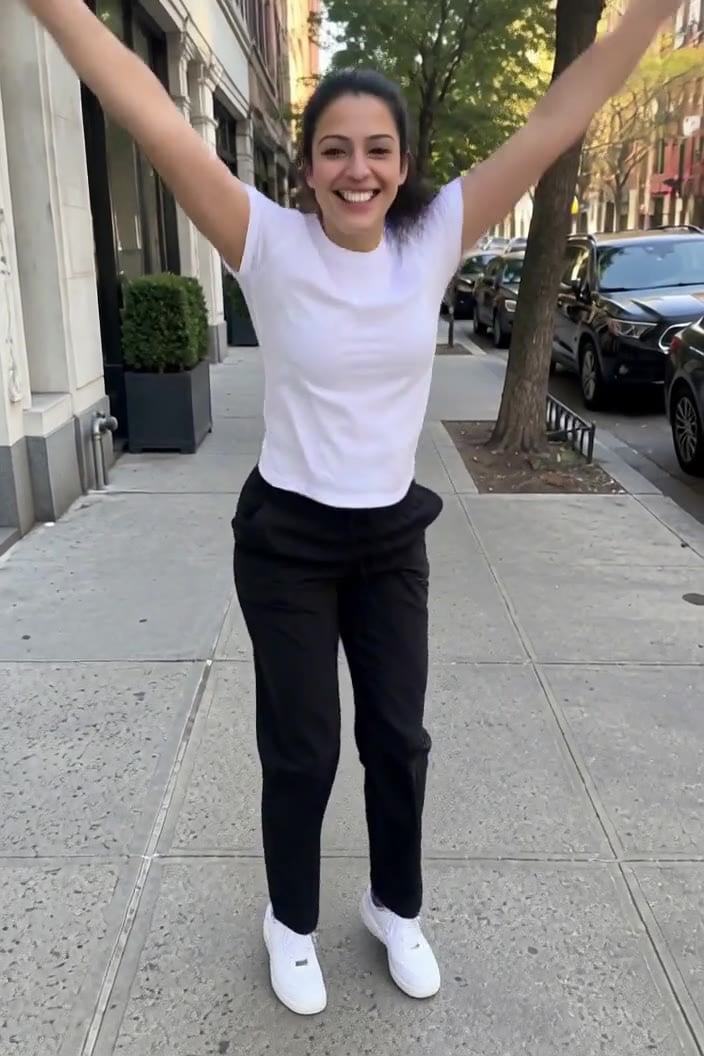
The preset creates a silent, 5-second, 720p clip for 284 credits. It keeps the source photo's aspect ratio. Check the quote in the studio before generating.
Step 1: Choose a standing photo with headroom
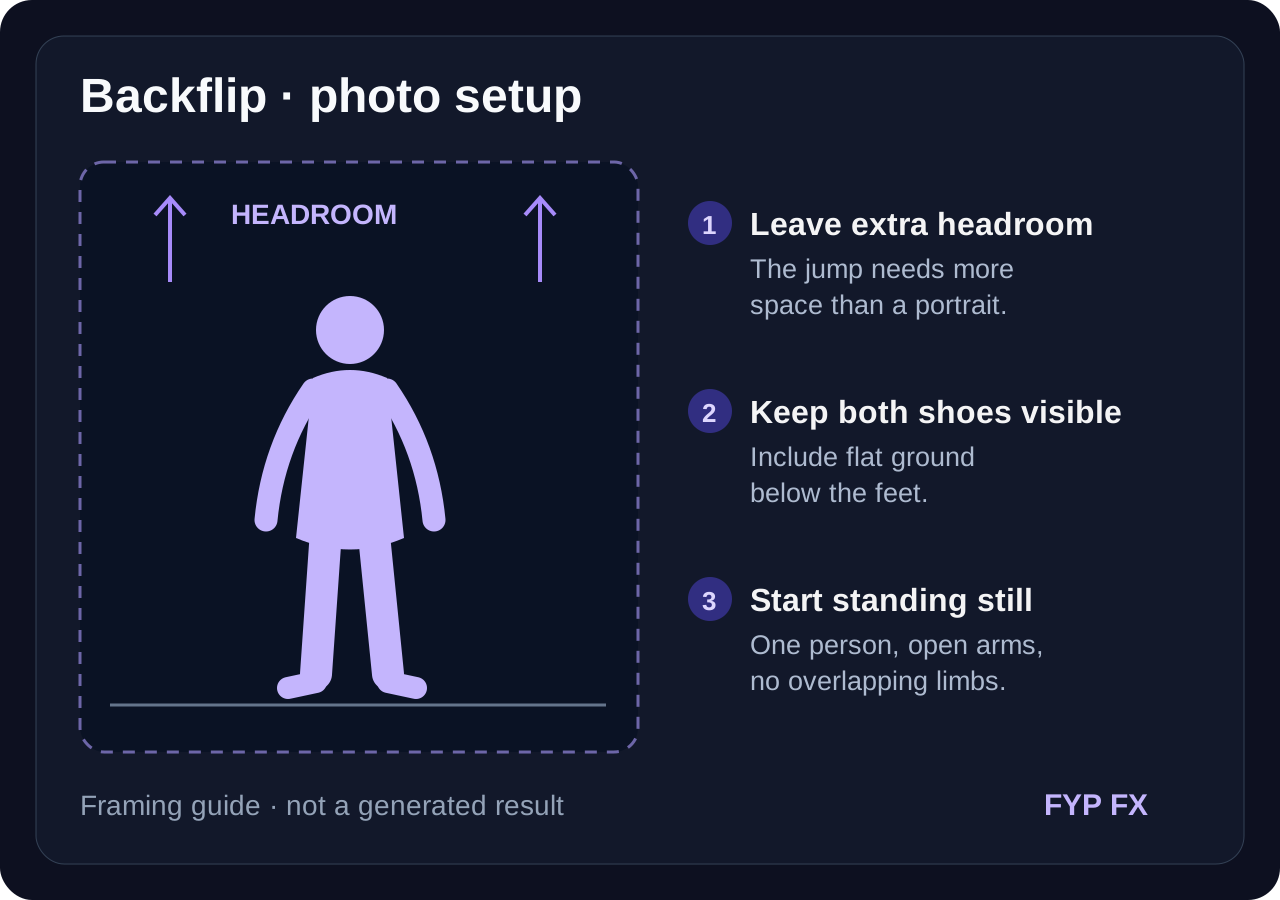
Use one JPG or PNG, up to 20 MB, with one person standing on a flat, visible surface. You only need a still photo; there is no need to record or perform a real backflip.
Check the source before uploading:
- Both shoes and their contact with the ground are visible. This gives the take-off and landing a clear starting point.
- There is open space above the head. The body rises above its starting height during the flip.
- The body is easy to separate from the background. Crossed limbs, furniture or another person overlapping the subject make the motion harder to read.
- The face is sharp. It should be recognizable at the start and during the final celebration.
A wider existing photo is more useful than simply stretching a tight crop. Seated, running and already airborne poses do not match the standing start. Use an image you have permission to use.
Step 2: Upload and generate once
Open AI Backflip, sign in and upload the image. When the upload finishes, check the preview for both shoes and overhead space. Confirm your balance covers 284 credits, then select Generate once.
The movement is fixed; there is no editable prompt or selector for a front flip, twist or multiple rotations. Processing can take several minutes. If the page times out, check My videos and your balance before starting again.
Step 3: Review take-off, rotation and touchdown
The preset requests a crouch and arm swing, one compact backward rotation, then a two-foot landing and an arms-up celebration. It asks for a steady camera and the whole body in view. Generated anatomy and motion can still vary.
Watch once at normal speed. Then pause around the top of the flip and replay the landing:
| Check | What to look for |
|---|---|
| Take-off | The knees bend and the feet leave the visible ground rather than sliding sideways. |
| Rotation | One backward turn, with no extra spin, body twist or detached limb. |
| Landing | Both shoes return to the ground and the person settles without floating or sliding. |
| Final pose | The face and outfit still resemble the photo during the celebration. |
If the body leaves the top of the frame, choose a source with more headroom. If the feet float or slide, try a simpler, more visible floor. If the limbs distort, try a relaxed standing pose with the arms clear of the torso. A new generation uses credits and may still need review.
Step 4: Download and time the sound to the landing
Select Download video in the studio, or open the finished clip in My videos. The output is silent. Import it into TikTok or your editor and place a beat or short impact sound at touchdown, then leave the celebration visible.
You can place a brief still of the original photo before the clip for a before-and-after setup. Any music, speed change or caption is added in your editor. Identify the finished edit as AI-generated when sharing.
FAQ
Do I need to know how to backflip?
No. The tool animates a still photo; it does not need a recording of the move.
Can I pick a front flip or several backflips?
No. This preset requests one standing backflip with a tuck.
Will every attempt land cleanly?
No. AI can over-rotate, distort joints or miss ground contact. Review the whole move before keeping the clip.
Choose a full-body standing photo and create an AI Backflip video. For other motion ideas, see AI Tornado or the AI Moonwalk Dance guide.